How to Control Your Scoreboard with a Stream Deck
By Joachim, founder · Updated
The ScoreLayer Stream Deck plugin puts your scoreboard on physical keys: scoring plays, the game clock, periods, timeouts, possession and the penalty flag. Each key that belongs to a team is captioned with that team’s name and its live value, so the deck tells you the score rather than asking you to remember it. It’s live on the Elgato Marketplace, so install is one click and the rest of setup is two fields, taking about five minutes in total. It needs a paid plan, because the plugin runs on the Peripheral Push API.
What you’ll need
- An Elgato Stream Deck, any model with keys
- The Stream Deck app, version 7.1 or later, on macOS 12+ or Windows 10+
- A ScoreLayer account on a paid plan
- A scoreboard created for your sport, with the overlay already running in OBS, Streamlabs, vMix or your switcher
Add the plugin to your Stream Deck
Open the ScoreLayer listing on the Elgato Marketplace and click Install — or search “ScoreLayer” from the Marketplace tab inside the Stream Deck app itself. Prefer a manual install? The same build (version 1.0.0) is also available as a direct download. Nothing here changes your OBS setup: the overlay stays exactly as it is, and the deck starts driving the same scoreboard your browser source is already showing.
- 1
Install the plugin
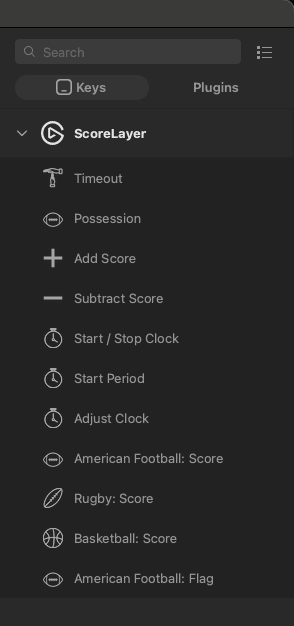
Click Install on the Elgato Marketplace listing, or find "ScoreLayer" in the Marketplace tab of the Stream Deck app and install it from there. Either way the app takes it from there, and the ScoreLayer actions appear in the actions list on the right. You need the Stream Deck app on version 7.1 or later, on macOS 12 or Windows 10 and up.
- 2
Generate a push token
Open your scoreboard’s control panel and find the "Peripheral Push API" card. Click "Generate API token". The card then shows the two values you need, the Scoreboard ID and the token itself, each with its own Copy button. Use those buttons; the Scoreboard ID is not the number in your browser’s address bar. The token is masked once created, so copy it now or rotate it later if you lose it.
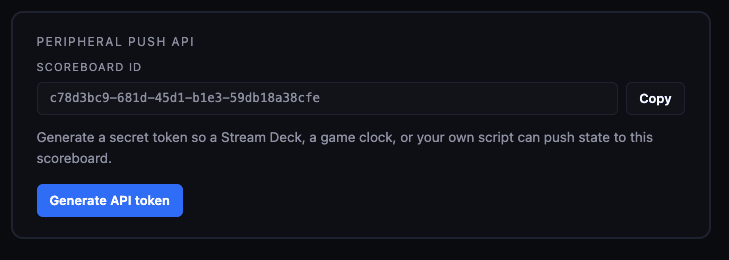
Before: the Scoreboard ID is already there, the token is not. 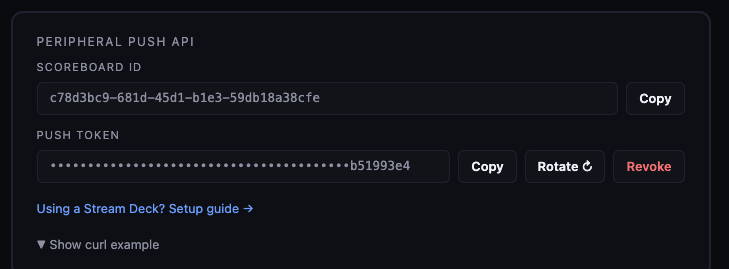
After: the token is masked from here on, with Copy, Rotate and Revoke beside it. - 3
Connect the plugin to your scoreboard
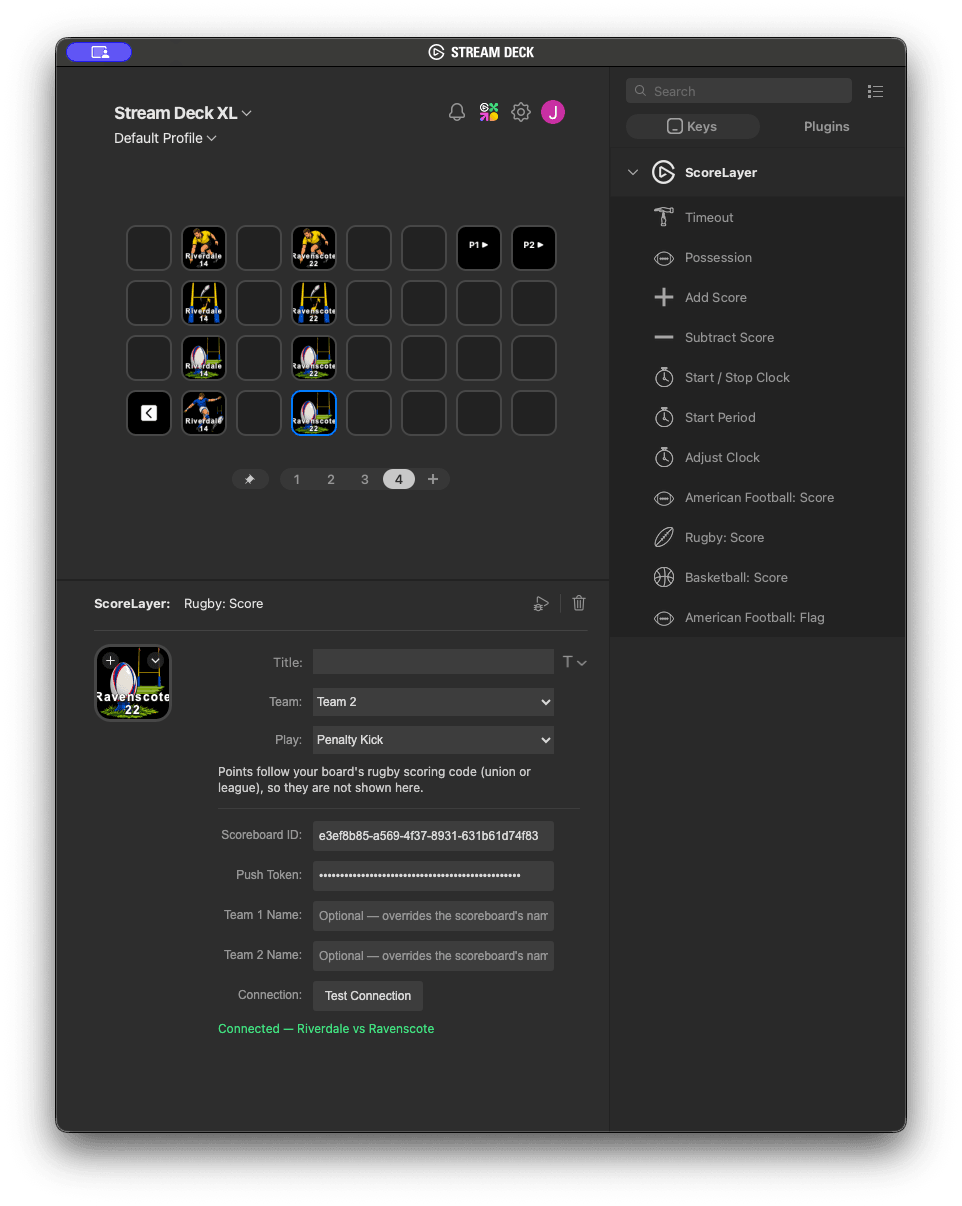
Drag any ScoreLayer action onto a key and open its settings. Paste the Scoreboard ID and the push token into the two fields at the top, then press "Test Connection". It answers with the names of the two teams on the board it reached, which confirms you are pointed at the right scoreboard. You only do this once: both values are stored globally in Stream Deck, so every ScoreLayer key on every profile picks them up from there.
- 4
Add the keys you need
Drag on the actions you want and set each one up. Team keys ask which team they belong to, the sport scoring actions also ask which play, "Start Period" asks for a period number and whether pressing it should also run the clock, and "Adjust Clock" asks how much to nudge by. Keys that belong to a team caption themselves with that team’s name and its live value, so you do not need to label them yourself.
- 5
Check it against the overlay
Press a scoring key and watch the scorebug in OBS. The overlay updates in under a second, and the key itself shows the new score. If the key shows a symbol instead of a number, the troubleshooting section below says what each one means.
Set up your sport
Score, clock, period and possession keys work on every sport. On top of those, American football, basketball and rugby each get their own scoring action, one key that covers every play in that sport, with the play chosen in the key’s own settings. Here’s a layout for each that fills a page without paging.
American football
American Football: Score covers touchdown (+6), field goal (+3), extra point (+1), two-point conversion (+2) and safety (+2), one play per key. American Football: Flag throws and clears the penalty flag. Timeout and Possession both apply — American football and flag football are the only sports with a deck-drivable timeout bank.
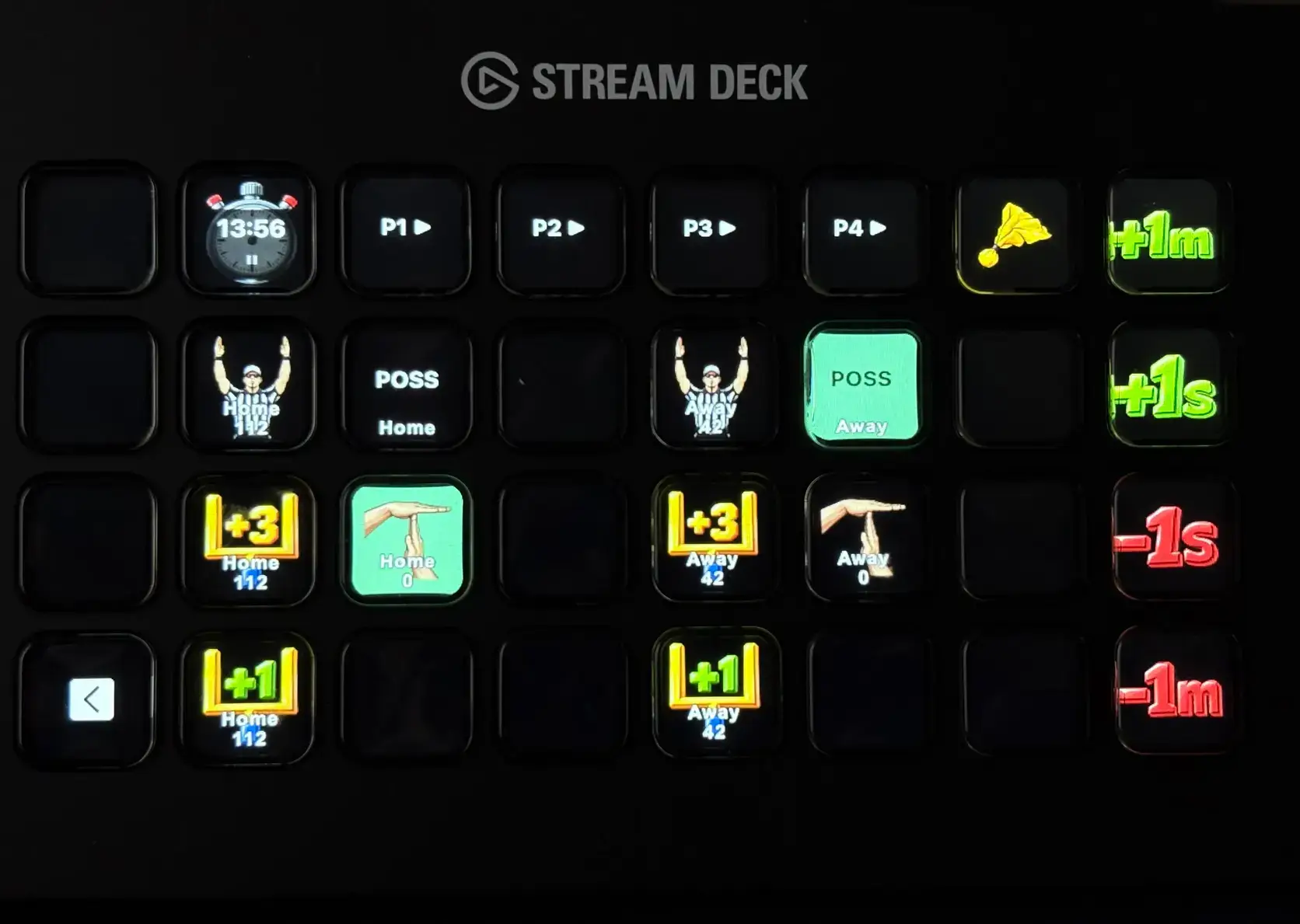
- Top row: the clock, a Start Period key per quarter (four), and the penalty flag.
- A column per team: touchdown, field goal and extra point stacked, with that team’s possession and timeout keys alongside.
- Far right: the four clock nudges, +1m down to -1m.
On the Safety key, Team is the side RECEIVING the two points — the defense that forced it, not the team in whose end zone the play happened.
Basketball
Basketball: Score covers the free throw (+1), the two-pointer (+2) and the three-pointer (+3), one play per key. Possession applies; Timeout does not — basketball’s timeout bank and fouls are tracked on the control panel rather than pushed through the API, so they stay off the deck.
- Top row: the clock and a Start Period key per quarter (four).
- A column per team: free throw, two-pointer and three-pointer stacked, with a possession key alongside.
- Far right: the four clock nudges, +1m down to -1m — you’ll have keys to spare next to it.
Rugby
Rugby: Score covers the try, conversion, penalty kick and drop goal. Possession applies; Timeout does not, since rugby carries no timeout bank. Cards stay on the control panel, same as American football’s.
- Top row: the clock and a Start Period key per half (two) — half time and full time stay on the control panel, since breaks carry no period number.
- A column per team: try, conversion, penalty kick and drop goal stacked, with a possession key alongside.
- Far right: the four clock nudges, +1m down to -1m.
The key shows no point value, because a try is worth 5 points under union and 4 under league. Set your board’s rugby scoring code on the control panel and the key scores correctly either way.
Every other sport — soccer, flag football, ice hockey, handball, volleyball, tennis, pool and boxing among them — already works with the score, clock, period and (where it applies) possession keys above; they just don’t have a dedicated scoring action yet. A smaller deck covers them fine: the clock, two Add Score keys and possession run a soccer or handball match, since none of those three actions are tied to a sport.
What the key is telling you
A ScoreLayer key normally shows live scoreboard state. When it cannot, it shows why instead of failing quietly.
| Display | Meaning |
|---|---|
| A score or a clock time | Normal operation. The key is connected and showing live scoreboard state. |
| — | The Scoreboard ID or push token has not been filled in yet. Open any action’s settings and add them. |
| ! | The plugin could not reach ScoreLayer. Usually a dropped internet connection on the streaming machine. |
| 🔑 | The push token was rejected. Generate a new one on the control panel and paste it in again. |
| 🔒 | The account is not on a paid plan. The Peripheral Push API, which the plugin runs on, is a paid feature. |
| ⚠️ | That action does not apply to this board’s sport, like a field goal key pointed at a flag football game. |
Troubleshooting
Every key shows a dash
The Scoreboard ID and push token are missing. They are shared by every key, so filling them in on one action fixes all of them. Open any ScoreLayer action’s settings and paste both values in.
A key shows a padlock
The scoreboard belongs to an account on the free plan. The plugin drives the Peripheral Push API, which is included on the Monthly and Annual plans. Everything else about the scoreboard and the overlay keeps working on free; only the peripheral control is gated.
A key shows a warning triangle
The action is not valid for that board’s sport. Timeouts exist on American football and flag football boards, possession on American football, flag football, rugby, pool and basketball, and each sport’s scoring plays only apply to that sport. Field goals in particular are American football only, since flag football has no kicking game.
Pressing the period key rewound a clock that was already running
That key is in "Start period" mode, which is the default: it sets the clock to that period’s starting value and runs it, so it belongs on the moment play begins. If you wanted to relabel the period and leave the clock alone, open the key’s settings and change "On press" to "Set period only". A key that will run the clock draws a ▶ after its number, so you can see which mode a key is in at a glance.
The safety key gave the points to the wrong team
On a safety, the Team setting is the team receiving the two points, which is the defending side. It is not the team whose end zone the play happened in. Swap the team on that key and it will score the way you expect.
A team name is cut short on the key
Captions are cut to twelve characters, because Stream Deck shrinks an over-long title and takes the value underneath down with it. If the cut leaves your club unrecognisable, set a short label in the plugin’s Team 1 or Team 2 Name field. Clearing that field hands the caption back to the scoreboard.
I changed the score on the control panel and the key still shows the old number
Keys re-read the scoreboard every few seconds, so give it a moment. If it stays stale, the plugin has lost its connection and will show an exclamation mark once it notices.
Frequently asked questions
Do I need a paid plan?
Yes. The plugin controls your scoreboard through the Peripheral Push API, which is part of the Monthly and Annual plans. Free accounts can use ScoreLayer’s overlays and control panel in full, but not peripheral control.
Which Stream Deck hardware works?
Any Stream Deck with keys, and the plugin needs the Stream Deck app on 7.1 or later. All the actions are key actions, so the number of keys is the only thing that changes between models. A larger deck holds a full match layout on one page; a smaller one holds the clock, score and possession keys and does fine for a sport with simpler scoring.
Does it use the dials on a Stream Deck +?
Not today. Every action is a key action, so a Stream Deck + works as a key deck and its dials stay free for whatever else you use them for.
Can a period key change the period without starting the clock?
Yes. Every "Start Period" key has an "On press" setting with two choices. "Start period" sets the clock to that period’s starting value and runs it. "Set period only" changes which period the board shows and does not touch the clock at all, so a clock that was running keeps running at the same value. Use the second one to fix a mislabelled period mid-play, or when a separate timer is driving your clock and the deck is only there to move the period along. Both apply your sport’s own rules for entering a period, so a basketball board grants that half’s timeouts either way.
Can I control more than one scoreboard?
One at a time. The Scoreboard ID and token are stored globally and shared by every key, so switching boards means pasting in a different ID. If you run two games back to back, the quickest path is to reuse the same scoreboard and reset it between matches.
Does the deck replace the control panel?
No, and it is not meant to. The deck handles what you press while play is live: scores, the clock, periods, timeouts, possession and the flag. Team names, colours, logos, down and distance, cards, basketball fouls, and the breaks between periods stay on the control panel.
Which sports does it work with?
Add Score, Subtract Score, Start / Stop Clock, Start Period and Adjust Clock work on any ScoreLayer sport. On top of those, American football has a key per scoring play plus the penalty flag, and rugby and basketball have their own scoring actions. Soccer has no separate scoring key because a goal is a single point, which Add Score already covers.
Can someone else run the control panel while I use the deck?
Yes, on a paid plan. Invite co-operators from the control panel and several people can run the same scoreboard at once, so one person can work the deck while another handles team setup and the parts that are not on a key.
Not running the overlay yet? The OBS setup guide covers adding the scoreboard as a browser source. If you would rather build your own controller than use the plugin, the same endpoints are documented in the Peripheral Push API reference.
Ready to get started?
Open your scoreboard, generate a push token, and put the first key on your deck.
Go to my scoreboards