How to Add a Scoreboard Overlay to OBS
By Joachim, founder · Updated
Adding a live scoreboard to an OBS stream manually is painful: static graphics, scores typed in mid-play, a number that's always one possession behind. A browser-source overlay fixes that — it renders the scorebug as a transparent layer and updates in real time from your phone. This guide uses ScoreLayer, and takes about two minutes. The same browser-source approach works in Streamlabs and vMix too.
What you'll need
- OBS Studio installed (version 28 or later recommended)
- A free ScoreLayer account
- A scoreboard created for your sport (American football, flag football, soccer, basketball, tennis, or pool)
Add your overlay to OBS in six steps
- 1
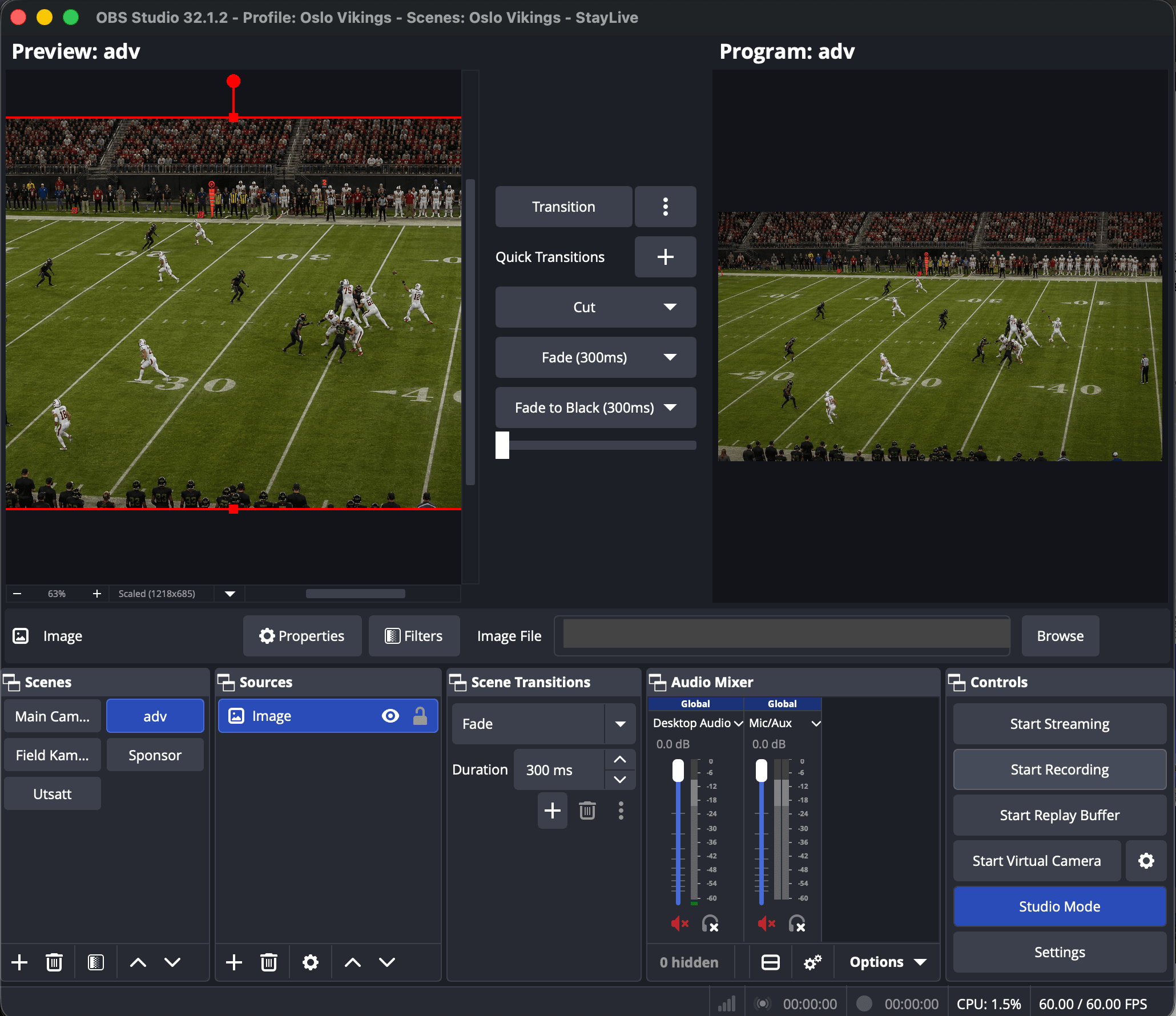
Open OBS and select your scene
Open OBS Studio and select the scene where you want the scoreboard overlay to appear. You can add the overlay to any existing scene.
- 2
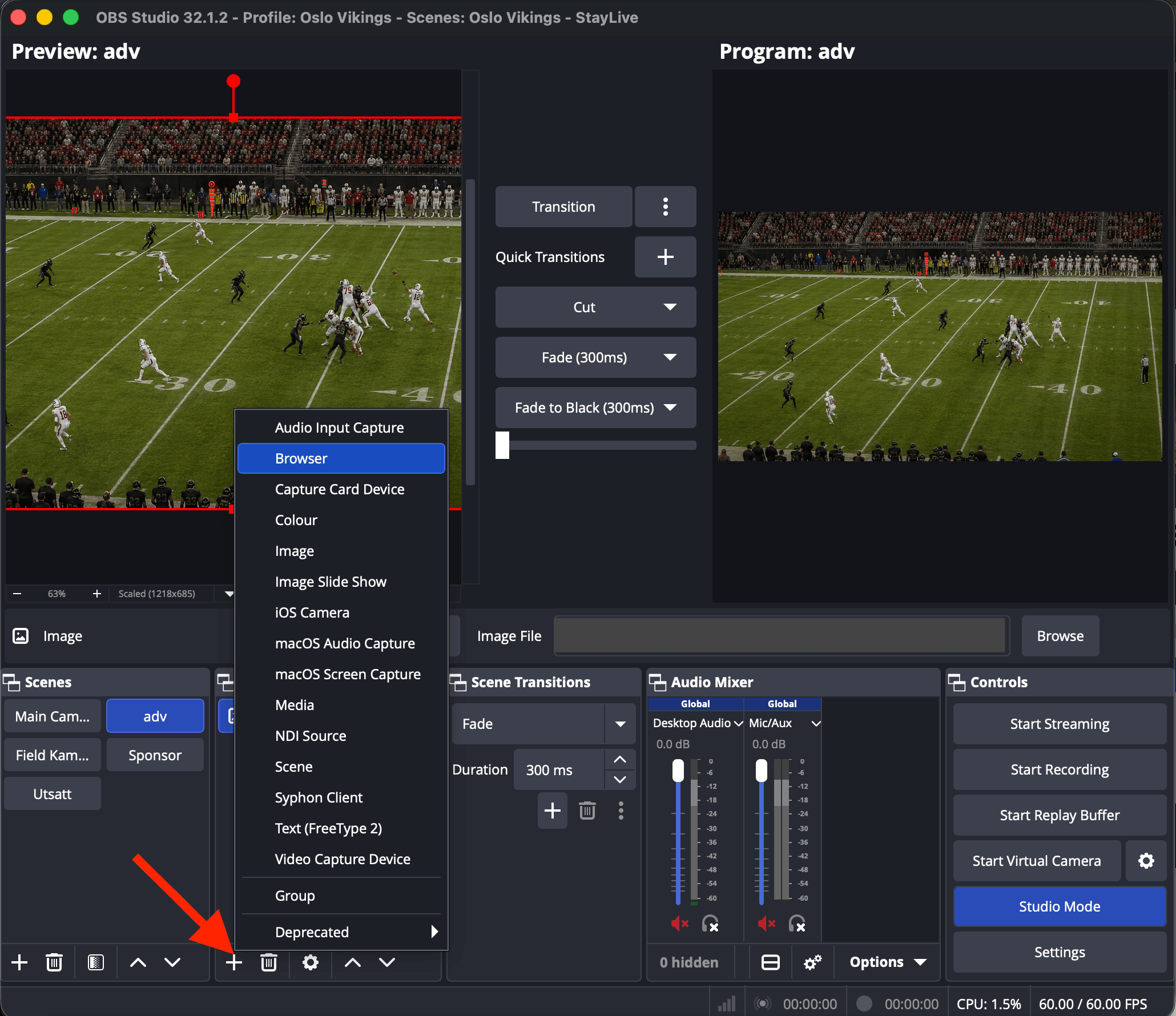
Add a Browser source
In the Sources panel at the bottom, click the "+" button and select Browser from the list. Give it a clear name like "ScoreLayer Overlay" — descriptive names save time if something breaks mid-game.
- 3
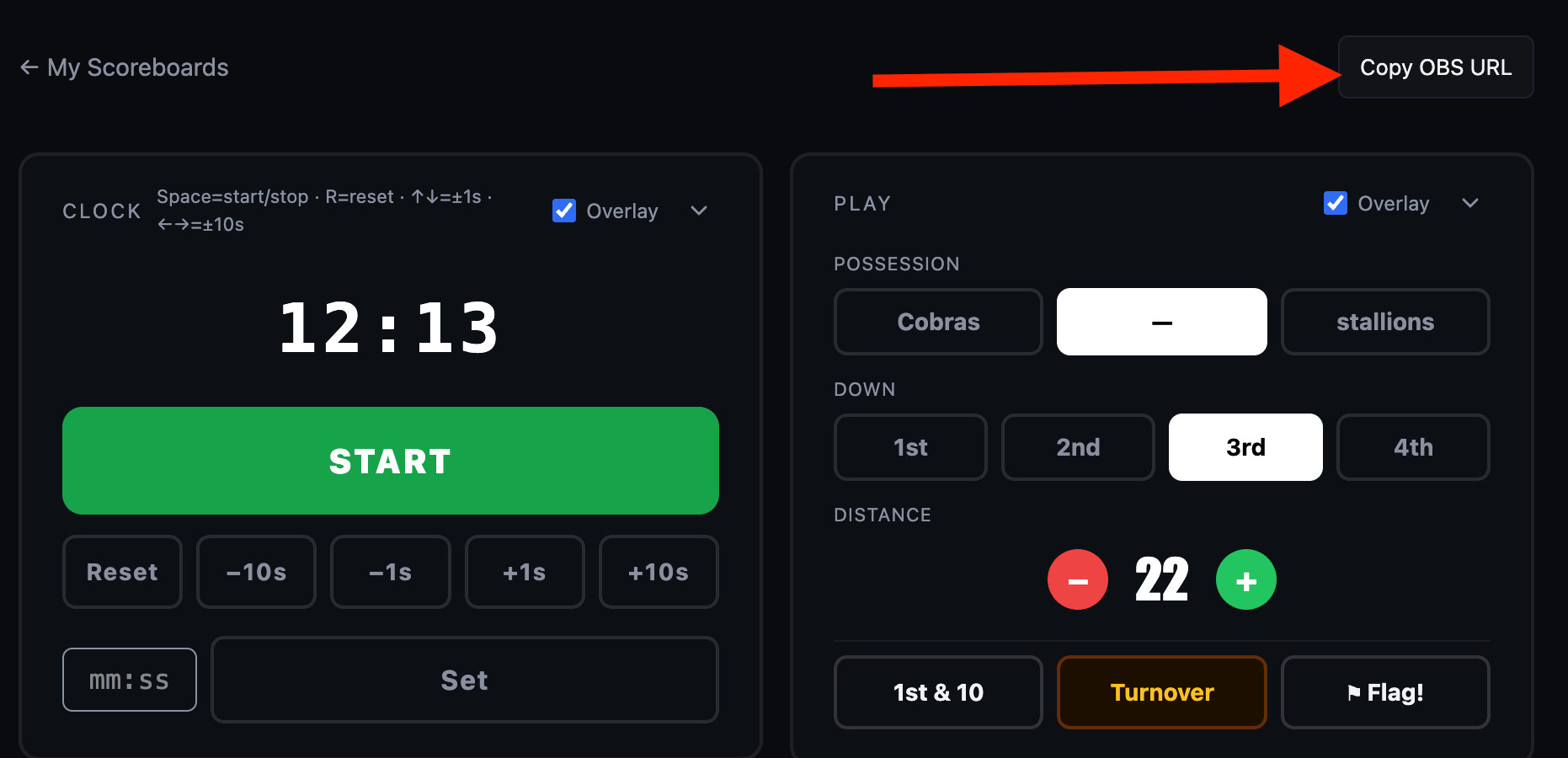
Copy your overlay URL from ScoreLayer
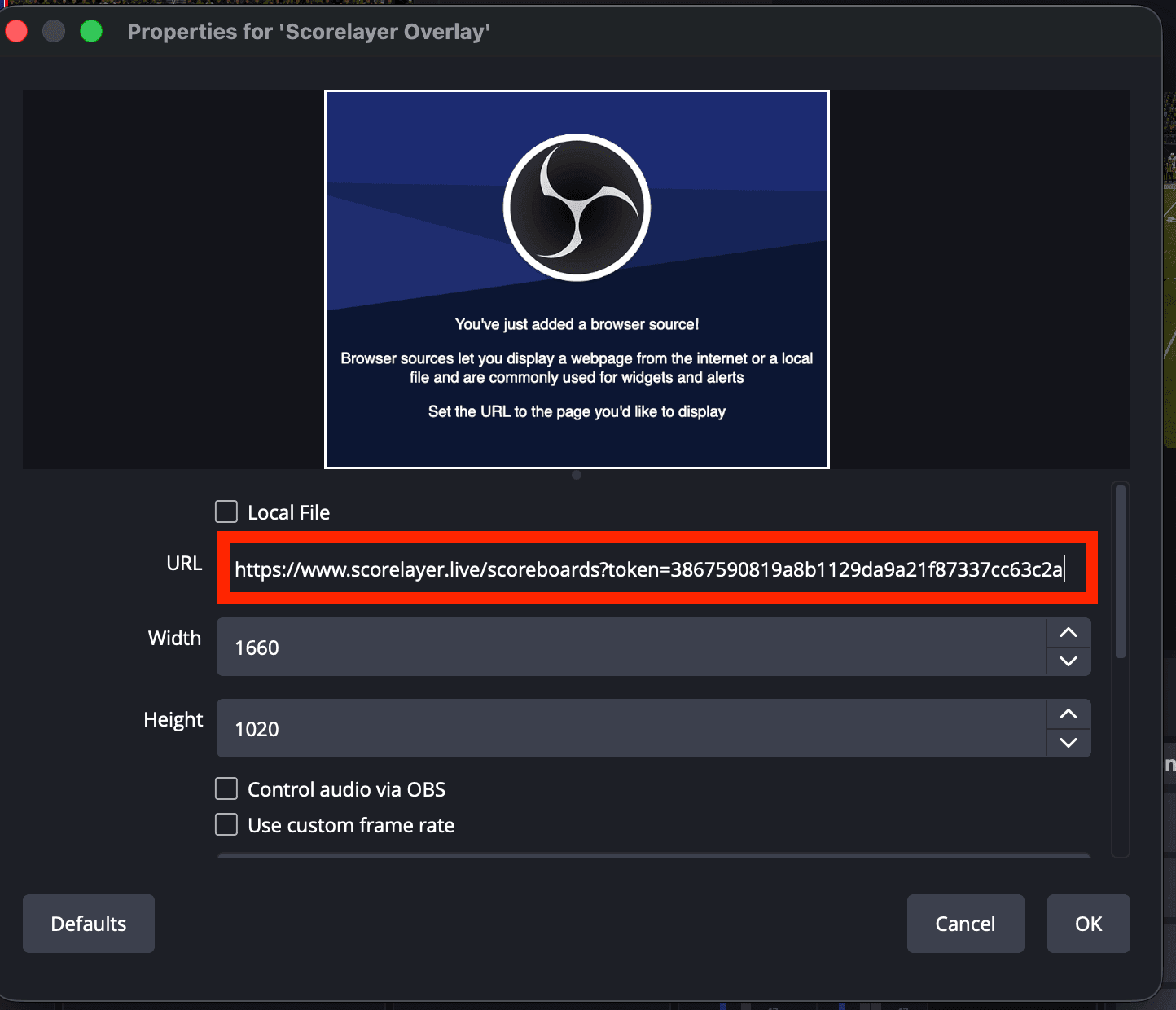
Open your scoreboard's control panel in ScoreLayer and click "Copy OBS URL" in the top-right corner. This copies the unique overlay URL for your scoreboard — you'll paste it into OBS in step 5.
- 4
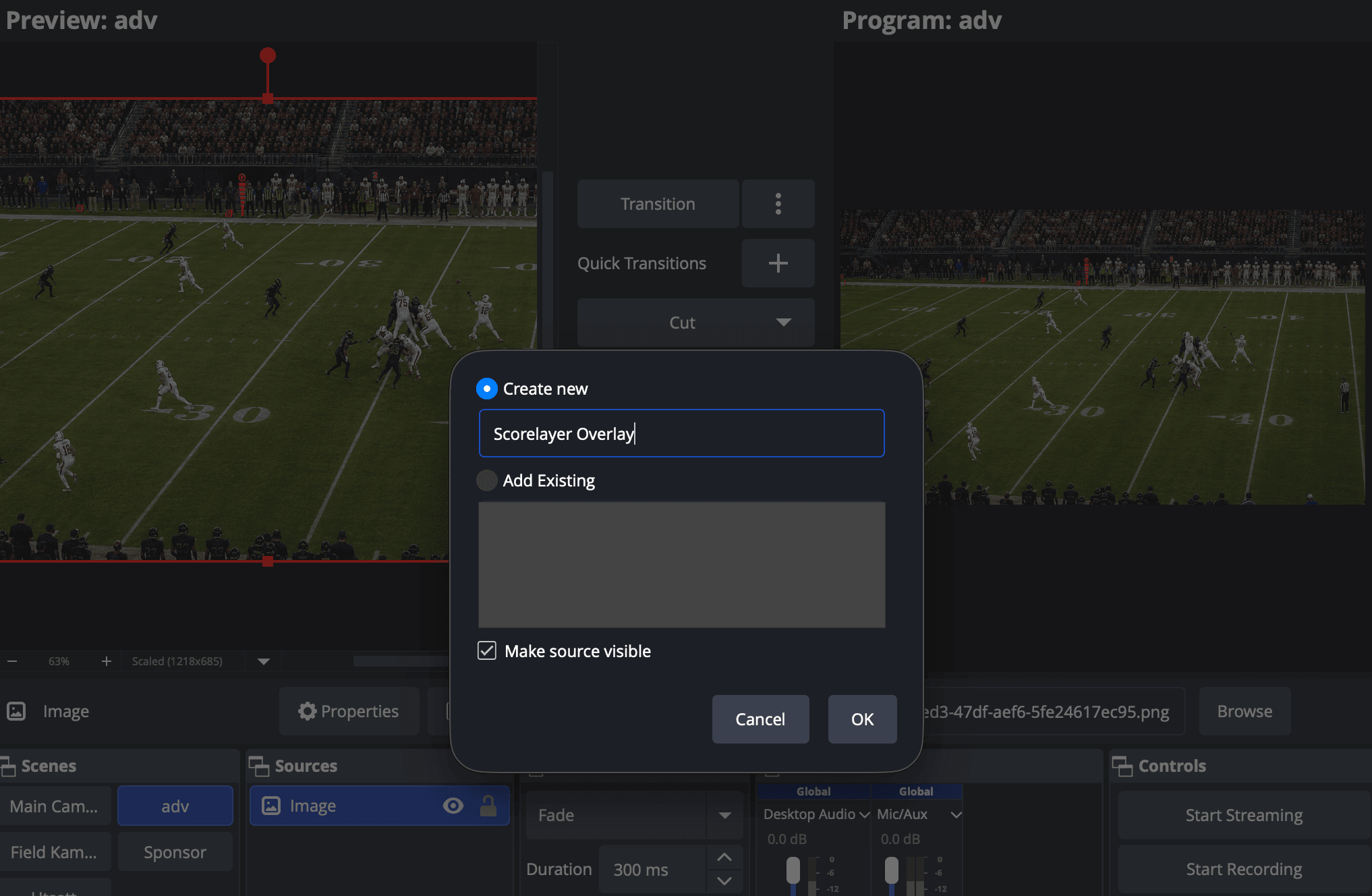
Name your source
Give your new Browser source a recognisable name — "ScoreLayer Overlay" works well. Make sure "Make source visible" is checked, then click OK.
- 5
Paste your URL and set the dimensions
Paste the URL you copied in step 3 into the URL field. Set the Width and Height to match your OBS canvas exactly — 1920 × 1080 for a full-HD stream. A mismatch here is the usual cause of a cropped or mis-scaled overlay. Click OK when done.
- 6
You're live!
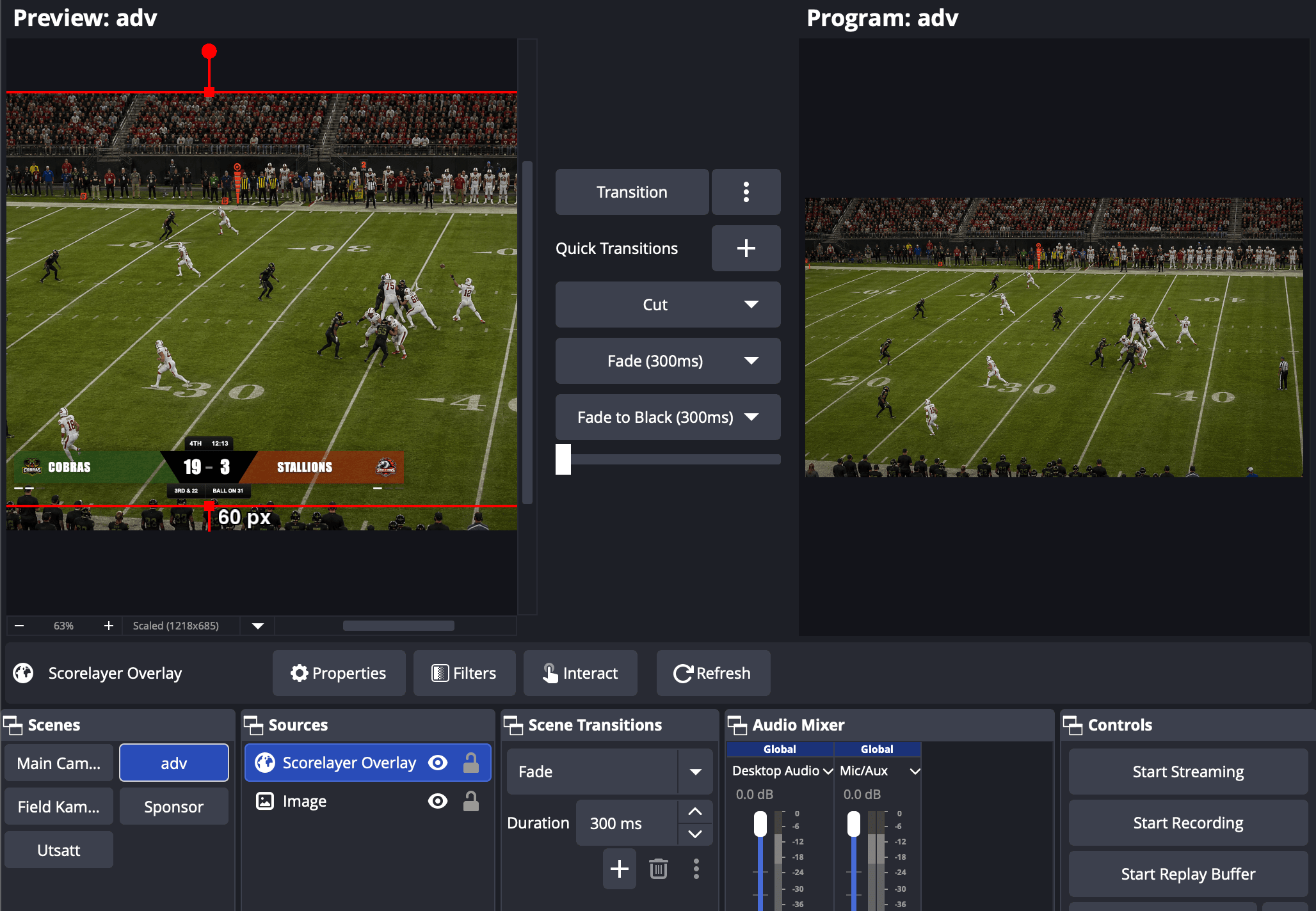
Your overlay is now part of your scene. Drag it into position (most scorebugs sit as a lower third), then right-click the source and choose Lock so it can't move mid-game. Open the ScoreLayer control panel in a browser to update scores, clock, and team details in real time during your broadcast.
Control the score during your broadcast
With OBS set up, open the ScoreLayer control panel in a separate browser tab, on your phone, or on a second monitor. It runs in any browser, with no app required. From there you can update scores with a single tap; start, stop, and adjust the game clock; advance periods, halves, or sets; and edit team names and colours mid-game without reloading the overlay. Every change syncs to OBS in under a second over a live connection, so the browser source never needs a manual refresh. To hand off scoring, share the control panel URL: several people can run it at once, one on the clock and another on scores.
Using vMix, Streamlabs, or a YoloBox instead
Streamlabs uses the same browser-source system as OBS Studio, so steps 2 through 6 above apply directly — add a Browser source, paste the overlay URL, and set the dimensions to match your canvas.
vMix: add a Web Browser input and paste the overlay URL as the address, set to match your output resolution. Assign it to an overlay channel rather than a layer in your mix, so you can toggle the scorebug on and off with a keyboard shortcut or control surface without touching your main video routing.
YoloBox: hardware switchers load the overlay themselves rather than through a browser source, and YoloBox in particular needs a different link than OBS does. See the YoloBox setup guide for that flow.
Troubleshooting
The browser source shows a black screen
Almost always the source loaded before the page finished rendering. Right-click the browser source and choose Interact — if the overlay appears there, it just needed time; close the window and it should display on your canvas. If not, open the source properties and click "Refresh cache of current page". If you have "Shutdown source when not visible" enabled and recently switched scenes, the same refresh forces it to reload.
The overlay shows but isn't updating when I change scores
Check that you pasted the overlay URL (scorelayer.live/scoreboards?token=…), not the control panel URL (scorelayer.live/scoreboards/control/…). They are two different addresses. If the URL is right, check the internet connection on the device running the control panel: sync uses a live WebSocket, so a dropped or throttled mobile connection delays updates.
The scoreboard is the wrong size or is cut off
The browser source dimensions must exactly match your OBS canvas resolution (OBS → Settings → Video → Output (Scaled) Resolution). If you resized the source by dragging its handles on the canvas instead of in the properties dialog, that scales the output and causes cropping. Fix it with right-click → Transform → Reset Transform, then set the correct Width and Height in the source properties.
I'm using YoloBox — should I follow this guide?
Not quite. YoloBox's own "Web URL Overlay" feature has a known bug that renders a web page cropped regardless of its content, so it needs a different link than the one you'd paste into OBS — click "Copy YoloBox URL…" in the control panel instead of "Copy OBS URL". The YoloBox setup guide walks through the whole flow, including which canvas resolution to pick and resizing the overlay widget so the scorebug fills the frame.
The background isn't transparent — I see a solid colour
OBS browser sources are transparent by default, so you do not need a chroma-key filter. Right-click the source and choose Interact: you should see the scorebug over a checkerboard (OBS's transparency indicator). If it shows a solid background, try enabling "Use custom frame rate" (30 fps) in the properties, which resolves a transparency bug on some systems. Also check that no other source sits behind and shows through it (sources render bottom-to-top in the list).
The overlay URL returns an error or a blank page
Each scoreboard's overlay URL carries a unique token. Tokens are permanent for the life of a scoreboard, but if you deleted a scoreboard and made a new one, the old token is dead. Copy the fresh overlay URL from the new scoreboard's control panel and update your OBS source.
The clock resets when I switch scenes
That is expected when "Shutdown source when not visible" is on: the source restarts and the page state resets. The authoritative clock lives on the ScoreLayer server, so it re-syncs to the correct time on restart. If the flicker is disruptive during a game, turn that option off and the overlay keeps its connection across scene switches.
Frequently asked questions
Do I need to install anything to add a scoreboard to OBS?
No. ScoreLayer runs entirely in your browser. You add the overlay to OBS as a Browser source using a URL — there are no plugins or downloads.
What size should the OBS browser source be?
Match your OBS canvas exactly — usually 1920 × 1080 for a 1080p stream. Mismatched dimensions are the most common cause of a cropped or scaled overlay.
Can someone else control the score while I run OBS?
Yes. Share the control panel URL and multiple people can operate it at once — one on the clock, another on scores. Every change hits the overlay in under a second.
Does this work with vMix and Streamlabs?
Yes. Streamlabs uses the same browser-source system as OBS Studio, so the steps are nearly identical. In vMix, add a Web Browser input and paste the overlay URL.
Ready to get started?
Create your scoreboard, open the control panel, and copy your OBS URL.
Go to my scoreboards