How to Add a Scoreboard Overlay to YoloBox
By Joachim, founder · Updated
A YoloBox can run a live scoreboard on its own — no laptop, no OBS, no capture card. It loads the scorebug as a Web URL Overlay and you control the score from a browser on your phone. The one thing to know before you start is that YoloBox needs a different link from the one you would paste into OBS, and ScoreLayer gives you that link with one click. This guide takes about five minutes.
What you'll need
- A YoloBox — Mini, Pro, Ultra, and Extreme all have the Web URL Overlay feature — on the internet
- A free ScoreLayer account
- A scoreboard created for your sport
- A phone, tablet, or laptop with a browser to run the control panel during the game
Why YoloBox needs its own link
YoloBox's Web URL Overlay has a documented bug of YoloLiv's own: it renders a web page cropped or incomplete regardless of what is on that page. It is not something the overlay can fix from its side, and it affects any web overlay, not just ScoreLayer's.
YoloLiv's published workaround is to point YoloBox at a small wrapper page that embeds the real page in an iframe with an explicit pixel width and height. The Copy YoloBox URL… option gives you exactly that, hosted by us — so there is no HTML file for you to write or host anywhere. The only thing the wrapper needs from you is the pixel size, which is what the resolution picker in step 3 asks for.
Add your overlay to YoloBox
- 1
Create your scoreboard
Sign up, pick your sport, and choose a scorebug style. Nothing here is YoloBox-specific — the same scoreboard works on any output you point at it.
- 2
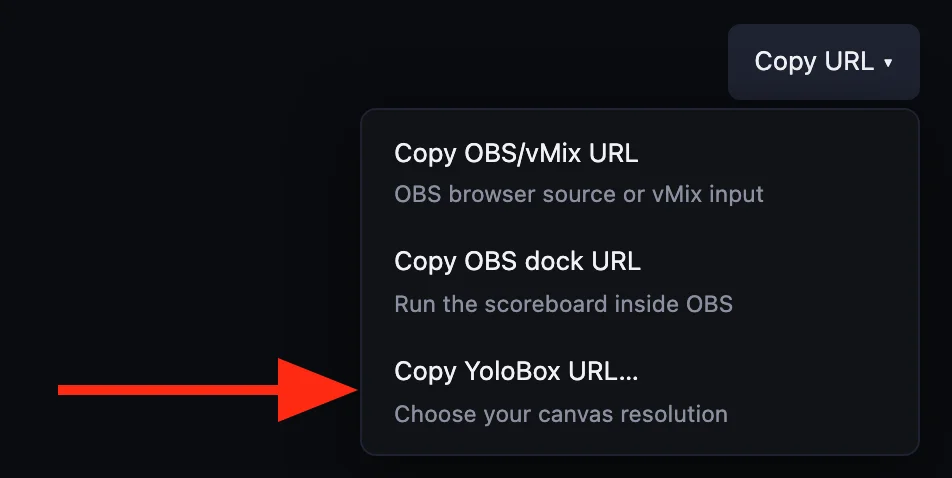
Choose "Copy YoloBox URL…" in the control panel
Open your scoreboard's control panel, click "Copy URL" in the top-right corner and choose "Copy YoloBox URL…". Use that one, not "Copy OBS/vMix URL" — the plain overlay URL is the link YoloBox renders cropped.
- 3
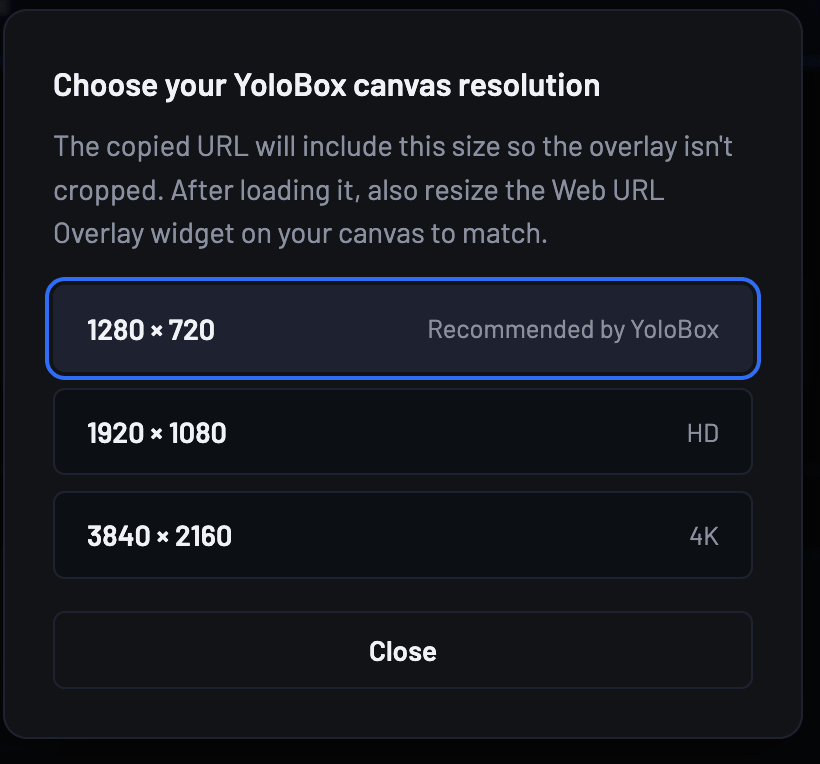
Pick your canvas resolution
The link carries a fixed pixel size, so it has to match the canvas your YoloBox is producing. Three presets cover most setups: 1280 × 720 (YoloBox's own recommended size, and ScoreLayer's default), 1920 × 1080, and 3840 × 2160. Pick the one that matches your output resolution.
- 4
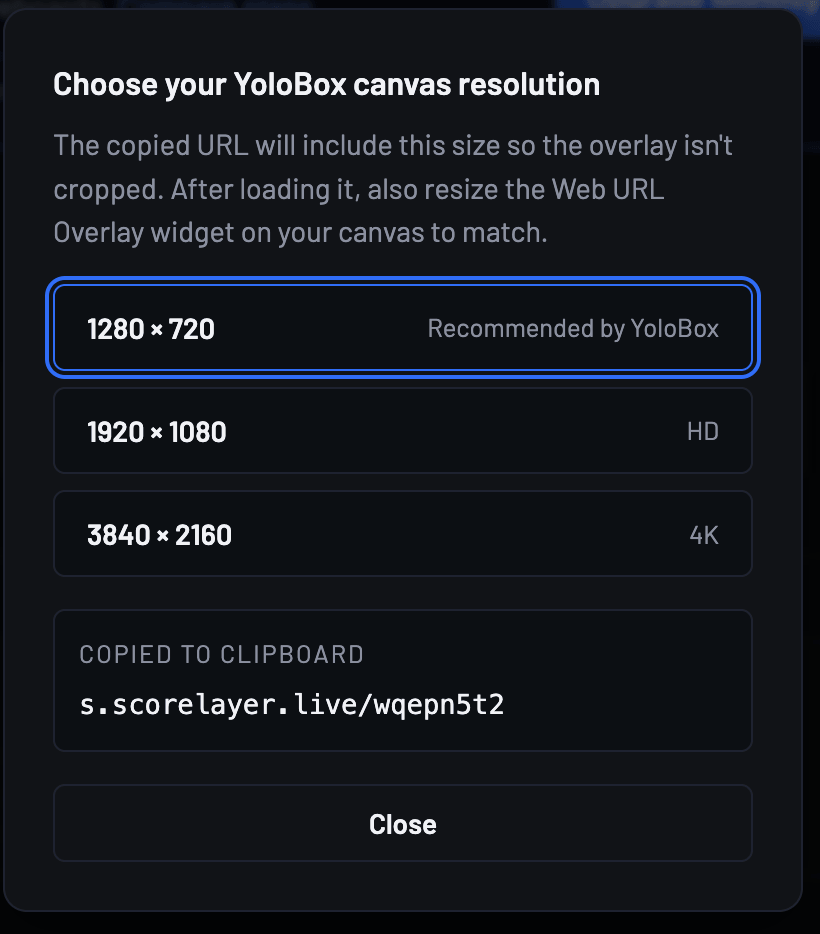
Check the link you just copied
Picking a preset copies the link to your clipboard and shows it in the picker, so you can read it before switching over to the YoloBox. Pick a different preset and it updates in place. It's a short link — a handful of characters rather than a long URL with query parameters — because typing it on YoloBox's on-screen keyboard is often the only way to get it in. If the clipboard write fails, the URL is still there as selectable text.
- 5
Add a Web URL Overlay on the YoloBox and enter the link
On the YoloBox, add an overlay of type Web URL (YoloBox calls it "Web URL Overlay") and enter the link from step 4 as its address. There is nothing to install and no file to host — the YoloBox loads the page itself.
- 6
Resize the overlay widget to fill the frame
This step is easy to miss and it is the usual reason a scorebug ends up tiny in one corner. YoloBox does not scale the page to fit the widget, so after loading the link, drag the Web URL Overlay widget's own handles on the canvas until it covers the full frame. A widget left at its default size shows you a shrunken corner of the overlay.
- 7
You're live
Open the ScoreLayer control panel on your phone, tablet, or a laptop and update scores, the clock, periods, and team details as the game runs. Every change reaches the YoloBox in under a second — you never touch the overlay widget again.
If your canvas is not one of the three presets
The picker offers 1280 × 720, 1920 × 1080, and 3840 × 2160. For any other canvas size you build the link yourself. The short link renders the overlay straight away rather than redirecting to a longer address, so there is no full URL to read back out of the browser's address bar — but the address it renders is one you can write by hand.
Choose Copy OBS/vMix URL and paste it somewhere you can read it. It looks like https://www.scorelayer.live/scoreboards?token=abc123. Take the token — everything after ?token= — and put it into this address with your own width and height:
https://www.scorelayer.live/scoreboards/yolobox?token=abc123&w=1600&h=900Use that on the YoloBox in place of the short link. Any size from 100 to 7680 pixels is accepted; anything outside that range falls back to 1280 × 720. It is a longer address to type on the on-screen keyboard than a preset's short link — that is the trade-off for an exact fit. Everything else about the flow is unchanged, including resizing the widget in step 6.
Control the score during your broadcast
The control panel runs in any browser, so a phone on the sideline is enough — there is no app to install and nothing to keep in sync with the YoloBox. From it you can update scores with a single tap; start, stop, and adjust the game clock; advance periods, halves, or sets; and edit team names, colours, and logos mid-game without reloading the overlay. Changes reach the YoloBox in under a second, so the Web URL Overlay never needs a manual refresh. On a paid plan you can also invite co-operators and hand off scoring, so several people run the same scoreboard at once — one on the clock and another on scores — while you stay on the switcher.
Troubleshooting
The scorebug is cropped, cut off, or only partly drawn
Check which link you loaded. The plain overlay URL (the one behind "Copy OBS/vMix URL") is the one YoloBox renders cropped — replace it with the link from "Copy YoloBox URL…". If you are already using the YoloBox link, the resolution baked into it does not match your canvas: copy a new one with the right preset, or hand-edit the size (see "If your canvas is not one of the three presets" above).
The scorebug renders small in one corner of the frame
The Web URL Overlay widget itself is still at its default size. YoloBox does not scale the page to fit the widget, so resize the widget on the canvas — drag its width, height, or scale handles — until it fills the frame. This is step 6, and it is separate from the resolution you picked in step 3.
I can't find the Web URL Overlay option on my YoloBox
Web URL Overlay arrived in a software update rather than shipping on day one — on the Pro it came in v1.6.0 — so a unit that has not been updated in a while may not have it yet. Update to the current firmware from the YoloBox's own settings and the option appears alongside the other overlay types.
The scoreboard sits on a solid dark box instead of a transparent background
This was a real bug and it is fixed — the overlay now forces a transparent background explicitly rather than relying on the embed to composite it. Reload the Web URL Overlay source on the YoloBox to pick up the fix. You do not need a chroma-key filter or a colour-key setting for a ScoreLayer overlay.
The overlay shows but doesn't update when I change the score
Score updates travel over a live connection from the control panel, so check the internet connection of the device running the control panel first — a dropped or throttled mobile connection is the usual cause. Also confirm the control panel is open on the same scoreboard the YoloBox link came from; if you have several scoreboards, it is easy to be editing a different one.
I rotated my share token and want to know whether the link still works
It does. The short link stores your scoreboard ID and the chosen resolution, not the share token itself, so it keeps resolving to the current overlay after a token rotation. You only need a new link if you deleted the scoreboard and created a new one.
I got a long URL with ?token= and &w= instead of a short link
That is the fallback when the short-link domain is not available for your account, and everything works the same way — it is just more to type. You can also open the long URL in a browser to confirm it renders before entering it on the YoloBox.
Frequently asked questions
Do I need a computer or OBS to use ScoreLayer with a YoloBox?
No. The YoloBox loads the overlay itself through its Web URL Overlay, and you control the score from a browser on your phone or tablet. No computer is in the path at all.
Why does YoloBox need a different link from OBS?
YoloBox's own Web URL Overlay feature has a documented bug that renders a web page cropped regardless of what is on it. YoloLiv's published workaround is to point it at a small wrapper page that embeds the real page in a fixed-pixel-size iframe, and the YoloBox link is that wrapper, hosted by ScoreLayer so you do not have to build or host an HTML file yourself.
Which resolution should I pick?
Whatever your YoloBox is outputting — 1280 × 720 if you are unsure, since that is the size YoloBox itself recommends for a web overlay. The picker offers 1280 × 720, 1920 × 1080, and 3840 × 2160; any other canvas size can be set by hand.
Does the same approach work on other hardware switchers?
Yes. Any switcher or encoder that accepts a web URL overlay can load a ScoreLayer overlay. On most of them the plain overlay URL works directly, so start there; reach for the YoloBox-style fixed-size link only if the device renders the page cropped.
Can someone else run the scoreboard while I operate the YoloBox?
Yes, on a paid plan. Invite co-operators from the control panel and several people can run the same scoreboard at once — one on the clock, another on scores — while you stay on the switcher.
Streaming from a computer instead? The OBS setup guide covers adding the overlay as a browser source in OBS Studio, Streamlabs, and vMix.
Ready to get started?
Create your scoreboard, open the control panel, and copy your YoloBox URL.
Go to my scoreboards