How to Set Up a Soccer Match on ScoreLayer: A Complete Game-Day Guide
A click-by-click guide to running a soccer match on ScoreLayer, for commentary streamers and full broadcast producers alike, with a game-day checklist and rehearsal tips.
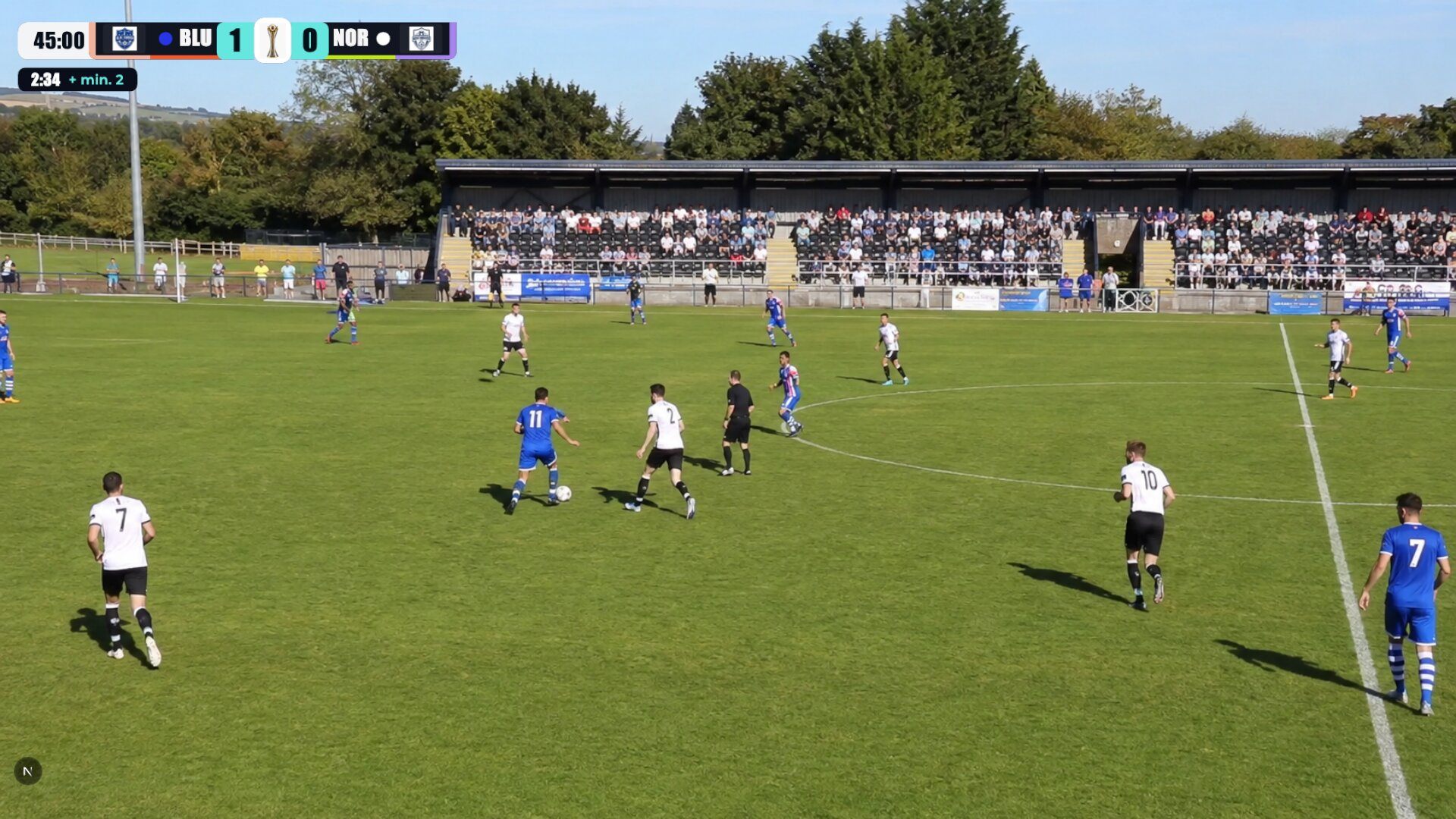
The whistle blows for kickoff, and somewhere off-camera someone is still fumbling with a control panel they've never opened before, trying to remember which button starts the clock. Meanwhile the chat is already asking "what's the score?" A few minutes of confusion at kickoff sets the tone for the rest of the broadcast, and it's completely avoidable.
This guide walks through everything you need to run a soccer match on ScoreLayer: what to prepare in the days before kickoff, a checklist for game day itself, and exactly which buttons to click, in order, from the opening whistle to full time.
Who this guide is for
Soccer streams on ScoreLayer generally come from two different kinds of operator, and this guide covers both:
Commentary streamers. You're watching a match, doing a watchalong, maybe on a stadium feed, maybe reacting live on YouTube, and adding your own commentary or analysis on top. You don't control the cameras, but you want a clean, accurate scoreboard overlay so your audience always knows the score, the time, and the cards without you having to say it out loud every thirty seconds.
Broadcast producers. You're running the actual live stream of the match: a high school AV team covering the varsity game, a club volunteer filming Sunday league, a college student streaming an intramural tournament. You're managing the camera, the audio, and the scoreboard, often all at once, often alone.
The setup is identical either way. The only difference is how much else you're juggling while you operate it, which is exactly why the rehearsal advice below matters more for producers than commentators.
What you'll need
- A free ScoreLayer account
- OBS Studio, Streamlabs, or vMix (or any tool that supports a browser source)
- A phone, tablet, or second browser tab to use as your control panel during the match
- Ten minutes before your first live match to do a full rehearsal
Get comfortable before game day
Don't operate ScoreLayer for the first time during a live broadcast. The controls are simple, but "simple" and "familiar under pressure" are different things, and soccer moves fast enough that fumbling for the right button during a goal celebration is a real risk.
Create a scratch scoreboard and play with it. Before your first real match, create a throwaway soccer scoreboard, name the teams something silly, and click through an entire fake match: kickoff, a goal, a card, half time, second half, full time. It costs nothing and takes five minutes, and it means the first time you touch these controls for real, your hands already know where everything is. If you're on the free plan, delete the scratch scoreboard afterward so you have room to create a new one.
Rehearse the period transitions specifically. The period buttons (1H, HT, 2H, ET1, ET HT, ET2, FT) double as your clock control during the match (more on this below), so it's worth clicking through the full sequence at least once before kickoff, including extra time, even if you don't expect the match to need it. Cup matches and knockout rounds go to extra time more often than you'd think.
Bookmark the control panel URL. Once you create a scoreboard, you land on its control page. Bookmark it, or save it to your home screen if you're running the match from a phone. You don't want to be searching your browser history for the right tab as the ref places the ball for kickoff.
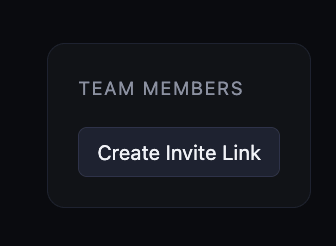
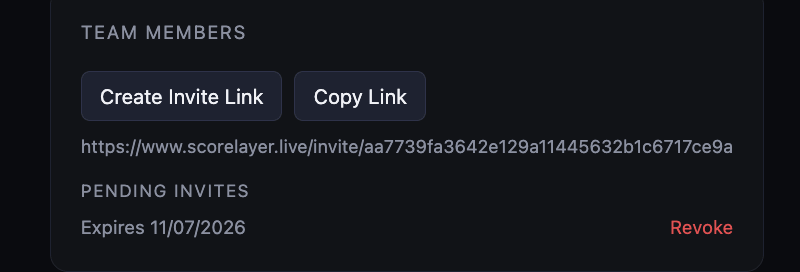
Decide who's handling what, in advance. If you have a second person available, ScoreLayer's control panel works from multiple devices at once: one person can run the clock and periods while another handles goals and cards. Agree on who owns what before the match starts, not during a goal-line scramble. As part of the rehearsal, invite your sidekick to the scoreboard using the invite control on the control page: click Create invite link, copy the generated link, and send it to your partner. Make sure they can log in and open the match scoreboard before game day.
Your game-day checklist
Run through this before you're within twenty minutes of kickoff:
- Scoreboard created, with the correct teams and sport (Soccer) selected
- Team names, colors, and logos set on the control panel
- Overlay URL copied and added as a browser source in OBS, Streamlabs, or vMix
- Browser source dimensions match your stream's output resolution exactly
- Control panel bookmarked and open in a separate tab, phone, or second monitor
- Test walk-through completed: click through a few scores, a card, and a period change to confirm the overlay updates live
- Device running the control panel is charged and on a stable connection
- Second operator (if any) knows their role and has the control panel open too
With that done, you're ready. Here's exactly what to click, in order.
Before kickoff: set up the match
Log in to ScoreLayer and click + New scoreboard. Give it a name (the fixture works well, e.g. "Wolves vs Rovers"), then set Sport to Soccer (it defaults to American Football, so don't skip this step). Pick an overlay style, then click Create.
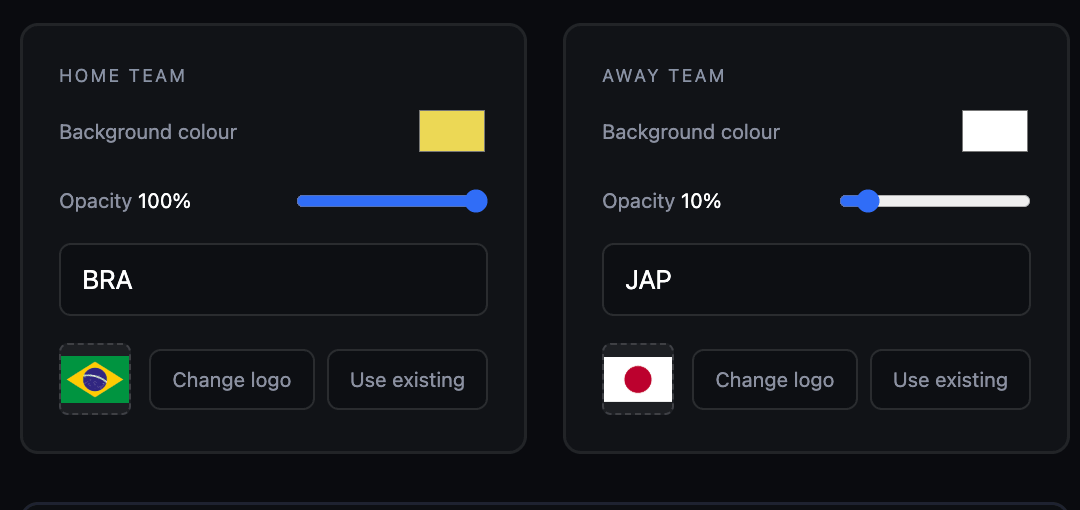
You'll land directly on the control panel for that match. Set your Home Team and Away Team names, colors, and logos here. All of it can be changed mid-match if needed, so don't let this hold up kickoff.
Add the overlay to your stream
If you're a broadcast producer, click Copy OBS URL near the top of the control panel and add it as a browser source in your streaming software, matching the dimensions to your output resolution. The full click-by-click walkthrough for OBS, Streamlabs, and vMix is in our OBS setup guide. It takes about five minutes.
If you're a commentary streamer working from an existing camera feed, the same overlay URL works as a browser source layered on top of that feed, or in a standalone browser tab if you're just narrating without a full production setup.
Starting the stream before the match starts?
In a pre-match setting, ScoreLayer allows you to put the overlay into pre-game mode. Set the start time of the match and select pre-game mode in the control, and the timer will count down until planned kick-off.
Kickoff: starting the clock
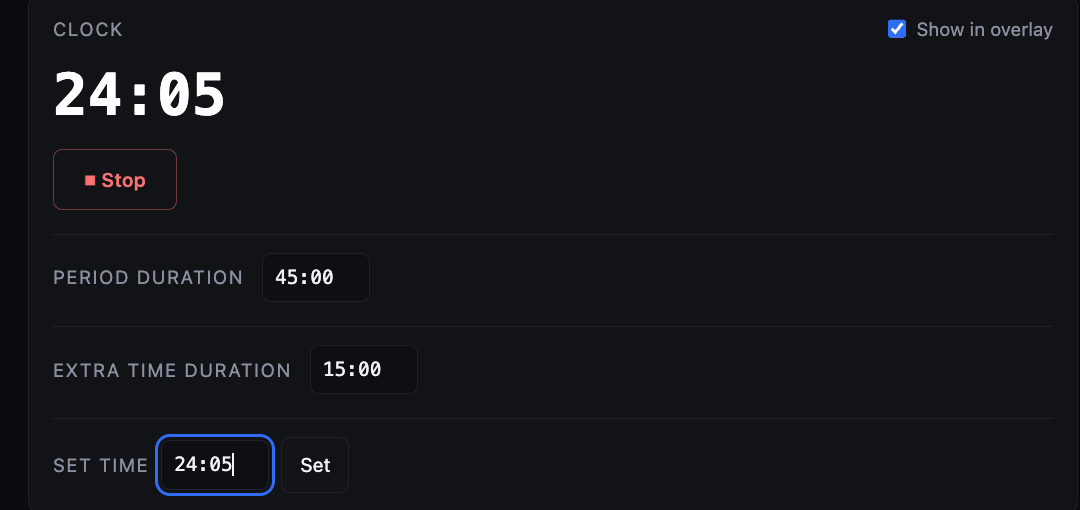
When the ref blows for kickoff, find the Period card. 1H is selected by default. Just below it, on the Clock card, tap ▶ Start: the clock starts counting up from 0:00. It can be hard to get this exactly right in the moment. If the clock is off, use the Set time field to correct it. The clock keeps running from the time you set.
Half time and the second half
When the ref blows for half time, click HT on the Period card. The clock automatically freezes at the current time and stops running. No need to also tap Stop.
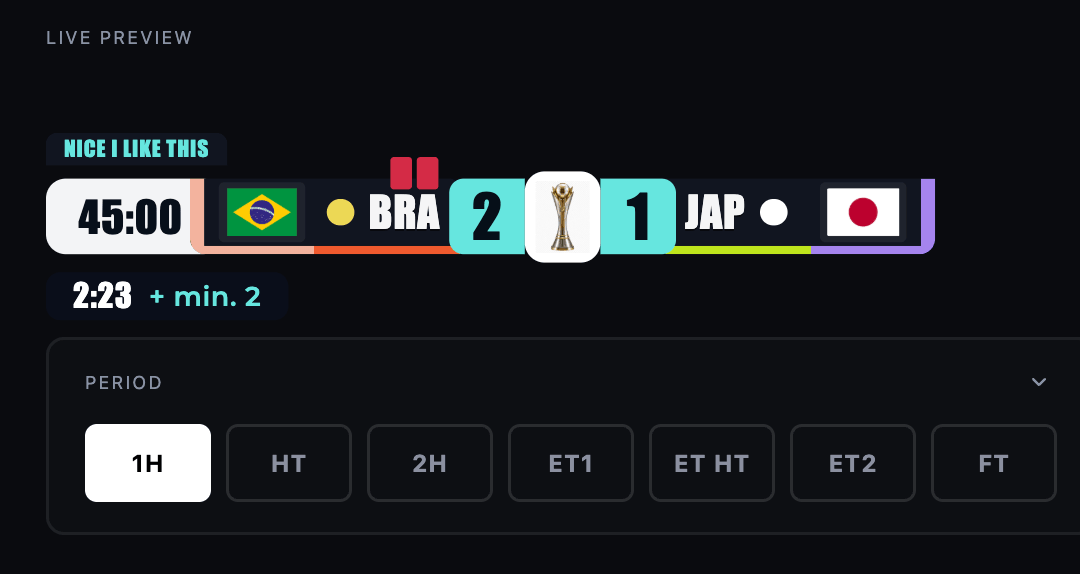
When the second half kicks off, click 2H. The clock automatically jumps to 45:00 (or whatever you've set as your Period duration) and starts running immediately. You don't need to tap Start again. One click at the whistle is all it takes.
Extra time, if the match goes there
If the match is level after 90 minutes and the competition calls for extra time, click ET1 at the whistle for the first extra period. The clock jumps straight to 90:00 and starts running.
At the extra-time break, click ET HT. Same as regular half time, the clock freezes automatically. When the second extra period kicks off, click ET2: the clock jumps to 105:00 (regulation time plus one extra-time half, using whatever Extra time duration you've configured) and starts running, again with no separate Start tap needed.
Red cards
Find the Red Cards card, with Home and Away columns. When a player is sent off, tap + under the correct team. The count and the overlay update immediately. If you need to correct a mistaken entry, − removes one.
Full time
When the final whistle blows, click FT. The clock freezes and the overlay shows a static full-time state. No further clock management needed.
A few operating tips
Handing off mid-match is safe. If you need to pass control to someone else (a co-commentator, a fellow volunteer), just send them the control panel URL. Multiple people can use it at the same time, and every change syncs to the overlay within a second.
Everything works on mobile. The control panel is a normal web page, so a phone on the sideline works exactly like a laptop in a production booth. No app to install.
Mistakes are just another click away. Clicked the wrong period, or need to adjust the clock by a few seconds for stoppage time? The Period buttons and the Set time field on the Clock card both accept corrections at any point in the match. Nothing is locked in once you've clicked it. One quirk worth knowing: once play runs past a half's regulation length (45:00 in the first half, 90:00 in the second, and so on), the main clock freezes there, and any extra time shows separately as a small +X:XX badge next to it. So 47:40 of play in the first half displays as 45:00 +2:40, not 47:40 directly. The same holds for every half, including extra time.
Ready to run your first match? Create your soccer scoreboard → and have the overlay live before your next kickoff. For team setup, overlay styles, and more on what ScoreLayer's soccer scoreboard can do, see the soccer overlay page.
Ready to go live?
Create a free scoreboard and add it to OBS in under 2 minutes — no install required.
Create free scoreboard