How to stream a football game: the complete matchday checklist
A practical guide to streaming grassroots football, from cameras and internet to OBS settings, scoreboard overlays, testing, and the final pre-kickoff checks.
Some of the gear links in this post are Amazon affiliate links. As an Amazon Associate, ScoreLayer earns from qualifying purchases — at no extra cost to you. We only point to equipment we think makes sense for matchday streaming.
A clean, professional football stream starts well before kickoff.
The camera needs power. The internet needs to work from the actual camera position. The scoreboard overlay needs the correct teams and logos. And someone needs to know who is controlling the score, the match clock, possession, and down and distance once play starts.
None of this requires a television production truck.
A modern iPhone, a laptop, a stable 5G connection, and a clean scoreboard overlay are enough to produce a professional-looking stream for a grassroots club, school, local league, or small broadcast team.
The hard part is not buying more equipment. It is preparing the gear you already have and testing the whole chain before the match begins.
This guide covers the full process:
- What to pack
- Where to position the camera
- Which stream settings to use
- How to avoid internet problems
- How to prepare your ScoreLayer overlay
- What to test the day before
- What to check at the venue
- What to do during the match
- How to finish and pack down properly
Use it as a planning guide, or jump straight to the printable matchday checklist near the end.
What you need to stream a football game
A reliable grassroots stream usually needs six things:
- A camera or phone with a clear view of the field
- A stable mount or tripod
- A laptop running OBS, Streamlabs, vMix, or similar software
- A dependable internet connection
- Audio, even if it is only the natural sound from the venue
- A scoreboard overlay that viewers can follow
You can add commentary, multiple cameras, replay systems, graphics, and extra microphones later. Start with the basic chain and make it dependable.
A simple stream that stays live and shows the correct score is more valuable than a complicated production that drops out midway through the first half.
An iPhone is good enough for grassroots football
You do not need an expensive broadcast camera to start streaming football.
A modern iPhone can produce a very good picture, particularly in daylight. It also gives you a flexible wireless camera option when running a long HDMI cable is difficult.
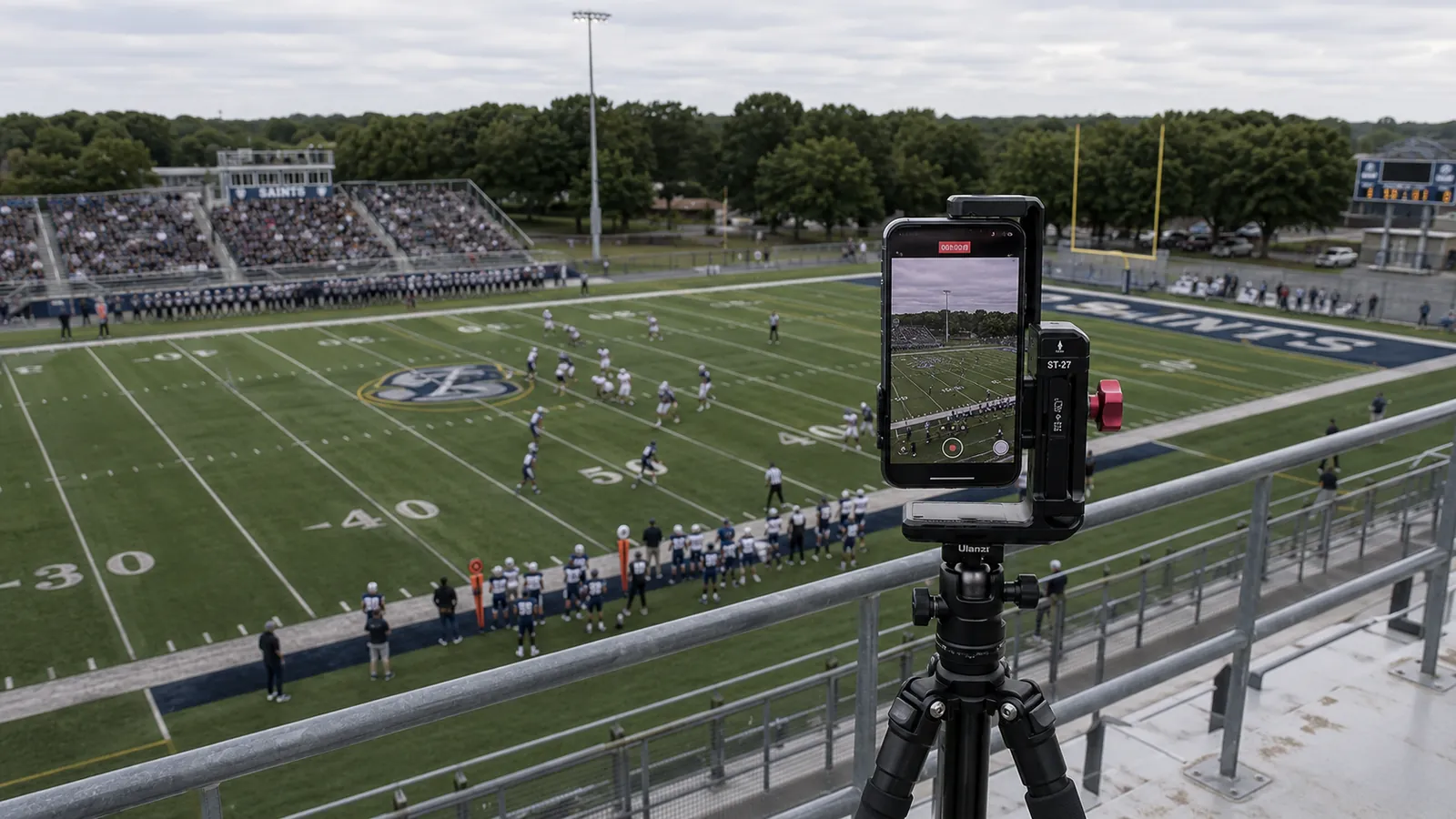
The important factors are more practical:
- Keep the phone stable
- Clean the lens
- Avoid digital zoom where possible
- Use a camera position high enough to follow play
- Connect a power bank before the match
- Keep the phone protected from rain and direct sunlight
- Test the camera-to-laptop connection for long enough to expose any dropouts
Streaming video over Wi-Fi uses a lot of power. Even a fully charged phone may struggle to last through warm-up, the full match, half-time, and any post-match coverage.
Bring a charged power bank and a cable long enough to reach the mounted phone without pulling on the clamp, or connect the phone directly to a power source. To hold the phone steady on a tripod, a dedicated phone clamp/mount grips it securely and lets you angle it to follow play.
Choose the right camera position
Camera position often matters more than camera quality.
A sharp close-up from ground level may look impressive for a few seconds, but it is difficult to follow an entire match when players, coaches, substitutes, and spectators keep blocking the view.
Look for a position that gives you:
- A clear view of the entire field
- A good angle across the halfway line
- Enough height to see over players and spectators
- A safe and stable place for the tripod
- Protection for the laptop, router, and camera operator
- Access to power, or enough battery capacity for the full production
- A reliable connection between the camera and laptop
The head on the tripod matters as much as the legs: a smooth fluid head is what lets you pan across the field to follow play without jerky, distracting movement. If you are still putting a kit together, this tripod and fluid-head combo is a reliable, affordable starting point for matchday.
For association football, a central position near the halfway line usually gives the most natural view.
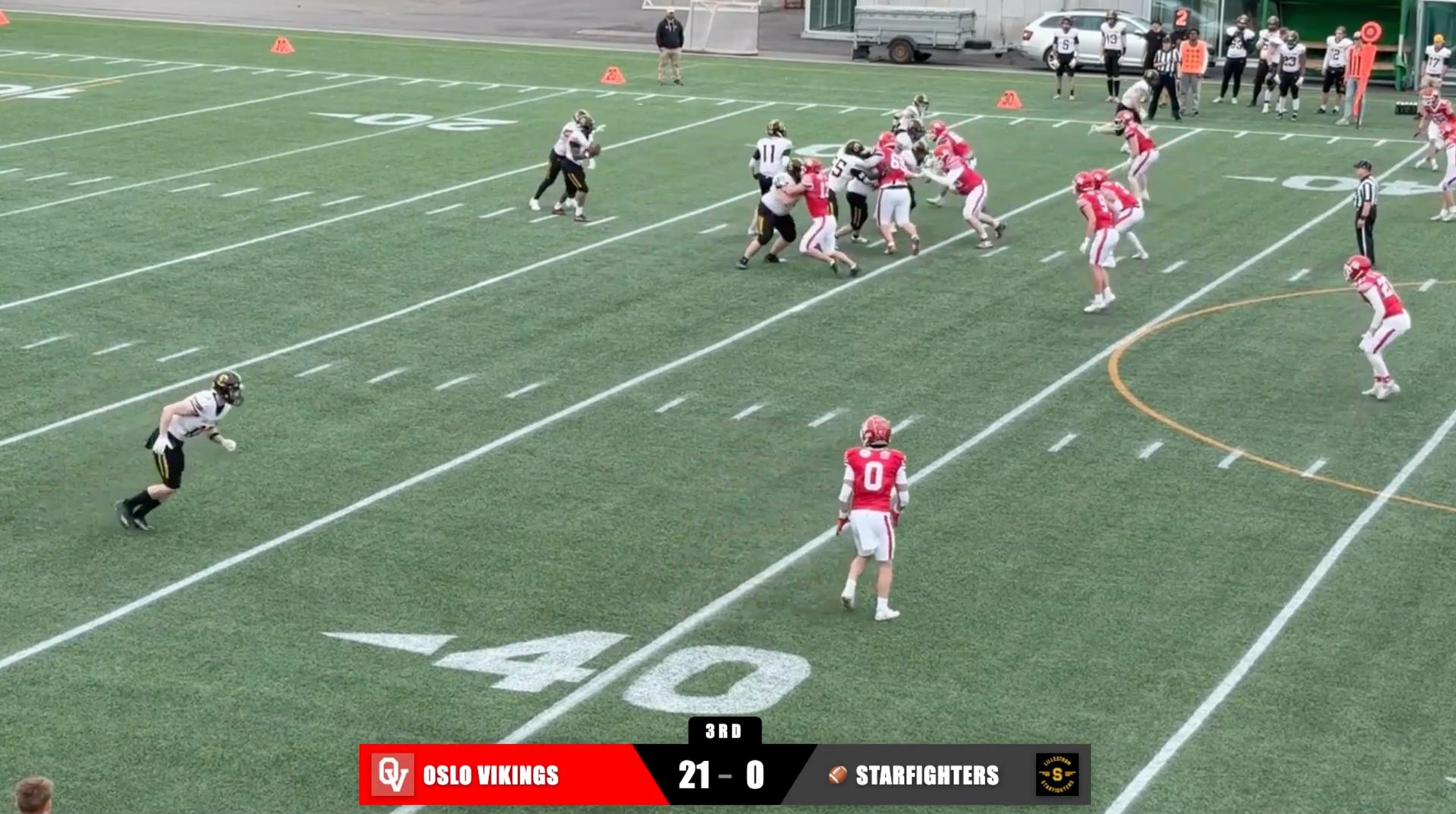
For American football, a high sideline angle also makes it easier to follow formations, down and distance, and play development. If down and distance matter to your broadcast, an overlay style like the ESPN 2018 scorebug is built to show them clearly.
Avoid setting up directly behind a team bench unless you have no alternative. Coaches, substitutes, and staff will regularly block the camera.
Bring an umbrella for rain and direct sunlight
An umbrella or small weather cover is one of the most useful low-cost items in a matchday kit.
It helps in the rain, but it is just as valuable in direct sunlight.
Shade can:
- Help keep the phone or camera from overheating
- Make a phone or camera screen easier to see
- Protect the camera operator during a long match
- Reduce glare
- Keep light rain away from power connections and controls
Secure the umbrella properly. A loose umbrella near an elevated camera position can become dangerous in wind.
The umbrella should protect the setup without touching the camera, blocking the lens, or transferring movement into the tripod. Most tripods can be operated with one hand, so in the worst case the camera operator can simply hold the umbrella — often they will want to anyway, to keep the weather off themselves.
Set up a clean scoreboard overlay
A scoreboard gives viewers the information they cannot reliably get from the camera picture alone. If you want the fuller argument for why this matters, see why live scoreboards change the viewer experience for grassroots sports.
At minimum, that normally means:
- Team names
- Team logos or colours
- Score (set it to 0-0 before start)
- Period or half duration(s)
- Match clock (set to 0 if it's counting up, as in soccer, or to the half/period duration if it's counting down, as in American football)
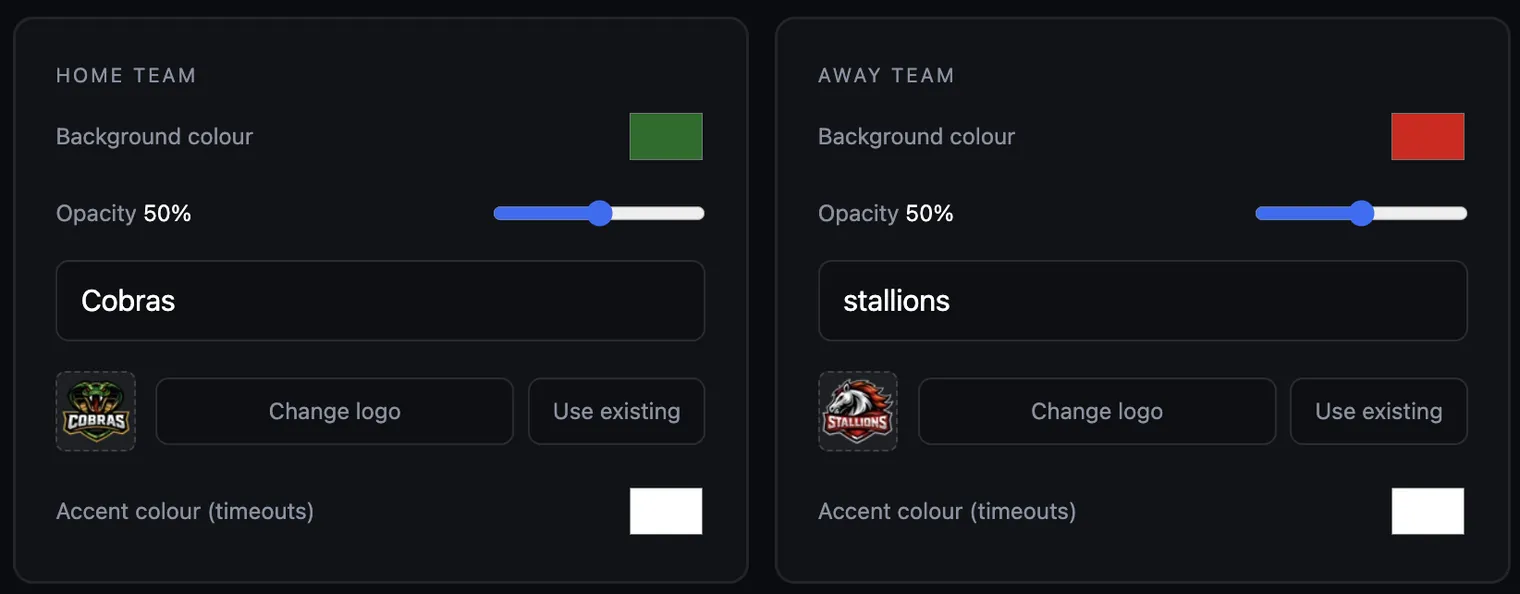
Depending on the sport and the people available to operate the stream, you may also want:
- Possession
- Down and distance
- Number of timeouts available per period/half
- Additional match status
With ScoreLayer, you control the scoreboard from your browser. You add the transparent overlay to OBS, Streamlabs, vMix, or similar software as a browser source. If you have not done this before, our step-by-step guide to adding a scoreboard overlay in OBS walks through it.
That keeps your stream layout in place while you update the score and match information from the control panel.
You do not need to edit text layers in OBS every time the score changes.
Pick a configuration and stick with it
ScoreLayer lets you choose what the overlay shows.
You can display the game clock, possession, down and distance, or a combination of them.
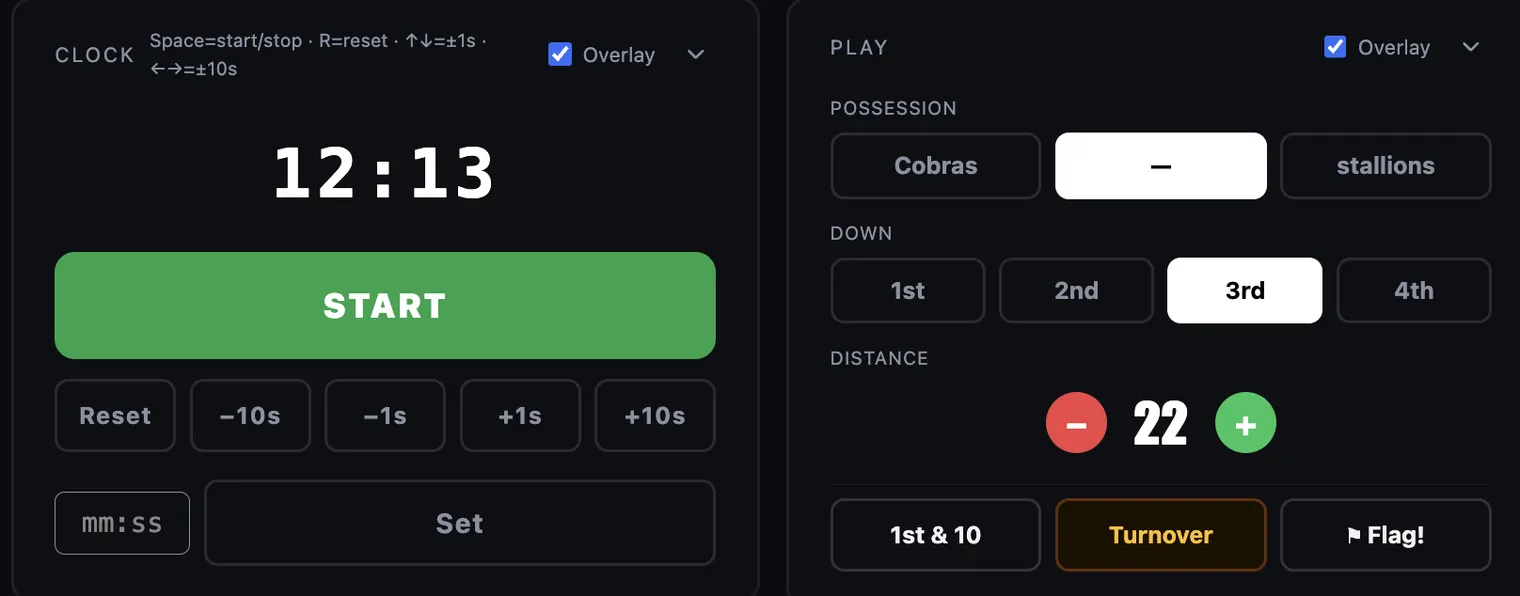
Choose the configuration before matchday. Test it. Then keep it consistent during the match. Once you are happy with the setup, collapse the setup section on the control panel so only the live controls stay in front of you.
More information is not automatically better.
A clean scoreboard with the correct score and clock is better than a detailed scoreboard showing an old down, the wrong possession, or a timer nobody has time to operate.
Before enabling an element, decide who is responsible for updating it.
Give the match clock to a dedicated operator
The game clock ideally needs its own operator.
It may be possible for one person to run the camera, monitor OBS, update the score, check the live platform, and operate the clock. It is rarely comfortable.
The clock requires regular attention, especially in sports where it stops and starts throughout the match.
A dedicated operator can watch the officials and keep the timer aligned with play while the main producer watches the stream.
When you do not have enough people, simplify. A reliable score-only overlay is better than an inaccurate clock.
Check every logo in the selected overlay
Logos that look good on a club website do not always work inside a scoreboard.
Some overlay styles work best with square logos. Others suit wider crests or simplified marks.
Check for:
- Logos appearing too small
- Excess transparent space around the crest
- Fine text that disappears at stream size
- Dark logos losing contrast
- White logos disappearing against a light element
- Different logo shapes making one team look much larger than the other
Open the real overlay at the same size and position you will use in the stream. Do not judge it only from the upload screen.
If a logo has a large empty border, crop the source image before matchday.
Use pre-game mode before kickoff
Do not start the public stream with an empty field and no explanation.
Put ScoreLayer into pre-game mode before the match begins. Viewers can then see a countdown to kickoff while teams warm up and people join the stream.
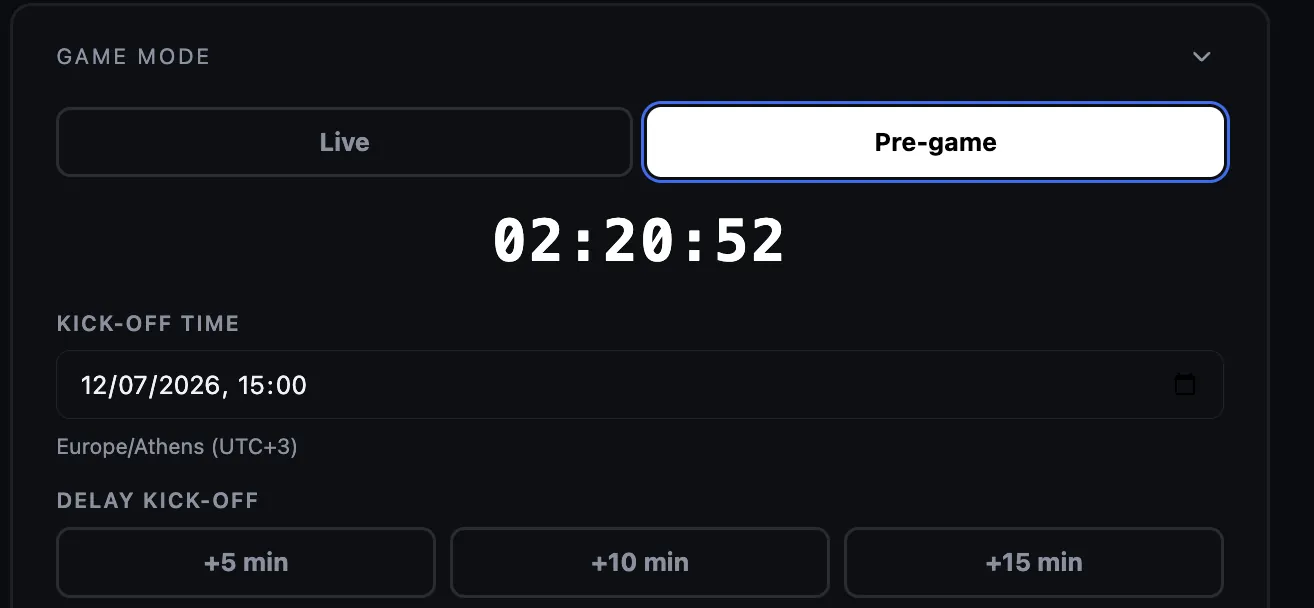
This immediately answers the viewer's first question: when does the match start?
A pre-game countdown also gives you a useful final period for checking audio, framing, overlay placement, and stream health without starting the match clock early.
For a simple grassroots production, a wide camera shot, natural venue audio, and a clear countdown are enough. You do not need to build a studio programme.
Recommended settings for streaming football
Football includes fast movement, long passes, quick camera pans, and players moving across large areas of grass.
For most setups, a good starting point is:
| Setting | Recommended starting point |
|---|---|
| Resolution | 1920×1080 |
| Frame rate | 60 fps |
| Video bitrate | 6000–8000 kbps |
| Keyframe interval | 2 seconds |
| Audio bitrate | 128–192 kbps |
| Rate control | CBR |
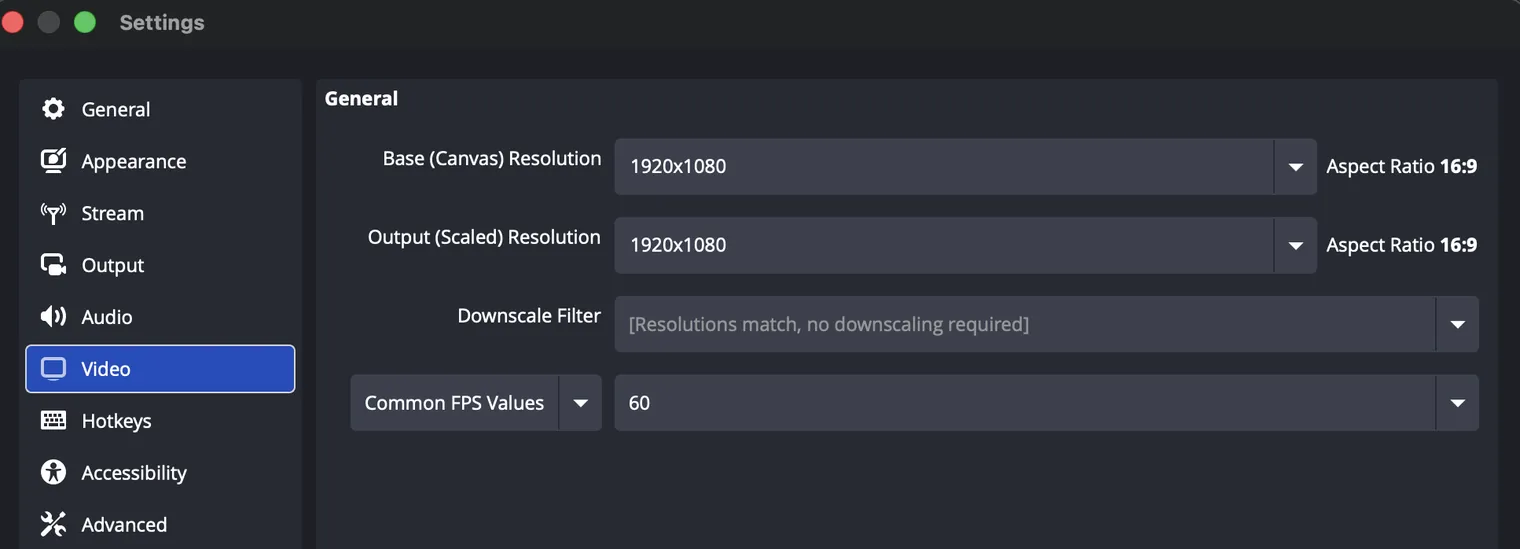
These are starting points, not fixed rules. The correct settings depend on the streaming platform, capture equipment, laptop, and available upload speed.
Why 60 fps helps
A 60 fps stream makes fast football action and camera movement look smoother than 30 fps.
This is particularly noticeable when:
- Following a long pass
- Panning quickly from one end of the field to the other
- Capturing a sprint down the sideline
- Following a kick return or breakaway
- Watching the ball move through a crowded area
Use 60 fps when the camera, capture device, laptop, and connection can handle it reliably.
A stable 30 fps stream is still better than an unstable 60 fps stream.
Start around 6000–8000 kbps
A video bitrate around 6000–8000 kbps is a useful target for 1080p football.
Fast-moving grass, uniforms, crowds, and camera pans are difficult to compress. A very low bitrate can turn the field into a blocky blur as soon as the camera moves.
Do not set the bitrate based only on one speed test.
Your connection needs enough spare upload capacity to handle temporary changes. Aiming to use every available megabit leaves no room for normal variation.
If your stable upload speed is limited, lower the bitrate. A clean 720p or lower-bitrate 1080p stream that remains online is preferable to a sharper stream that constantly buffers or disconnects.
Try 1080i if the capture card struggles
Some capture cards and inexpensive HDMI dongles struggle with a 1080p camera signal. Starting with a known-good card avoids most of this — this HDMI capture card handles a 1080p feed reliably and is a safe default if you need one.
Symptoms can include:
- No picture
- Repeated signal loss
- Flickering
- A feed that appears and disappears
- Capture software freezing
- Incorrect colours or resolution detection
If your camera and capture card support it, try outputting 1080i instead.
Some devices accept interlaced 1080 input more reliably than progressive 1080p.
This relates to the signal entering the capture card. You may still configure OBS to output a normal progressive stream after deinterlacing.
Test this at home. Do not wait until the first drive, first attack, or opening whistle to discover that the dongle dislikes the camera output. In most sports, the players spend quite a lot of time on-field when warming up. Use that time to follow players, pan the field, check zoom levels, etc. Find a configuration that works and stick with it.
Do not rely on venue Wi-Fi
Venue Wi-Fi can be misleading.
It may work perfectly when you arrive two hours before kickoff. Then players, coaches, volunteers, parents, and spectators arrive and connect their phones.
The connection can degrade quickly.
Possible problems include:
- Lower upload speed
- Increased latency
- Packet loss
- Wi-Fi congestion
- Captive portal problems
- Device limits
- Network restrictions on streaming traffic
- A password that changes without notice
Treat venue Wi-Fi as a possible backup, not the main plan, unless you have tested a dedicated connection arranged specifically for the production.
Use a dedicated 5G router
A dedicated 4G or 5G router works well for many grassroots venues.
It gives you control over the local network and avoids sharing venue Wi-Fi with everyone in the building or stadium.
Before matchday:
- Check mobile coverage at the venue
- Confirm the SIM has enough data
- Test the router under load
- Place it where it gets a strong signal
- Keep it out of direct sun
- Bring its power supply
- Know how to restart it
- Bring a backup hotspot on a different mobile network when possible
Mobile coverage can also change when a large crowd arrives, but a dedicated router is usually more predictable than public venue Wi-Fi.
Connect the laptop to the router with Ethernet
Whenever possible, connect the streaming laptop to the router using an Ethernet cable.
This matters even when the camera is wireless.
Without Ethernet, Wi-Fi may need to handle:
- The phone camera sending video to the laptop
- The laptop sending the completed stream back through the router to the internet
That is a lot of traffic over the same wireless connection.
Most modern laptops need an adapter for this. A simple USB-C to Ethernet adapter is all you need if that is the only extra port you are missing; a multiport hub with Ethernet and power delivery is worth it if you also want to charge the laptop and add USB ports from the same dongle.
Connecting the laptop to the router by cable leaves Wi-Fi available for the camera and reduces one source of interference.
It also makes the laptop connection more stable when people move around the production area.
Test the network from the real production position
A speed test from the car park is not enough.
Test from the exact location where the router and laptop will be placed.
Concrete walls, metal structures, windows, roof sections, crowds, and elevation can all affect the result.
Run more than one test. Then run a private stream for several minutes. A successful speed test does not guarantee a stable live video connection.
Plan the people, not only the equipment
Before matchday, assign clear roles.
A small production might use:
- Camera operator: follows play and protects the shot
- Producer: runs OBS and monitors stream health
- Scoreboard operator: updates score, period, and other match data
- Clock operator: controls the game clock
- Commentator: handles live commentary
- Stream monitor: watches the public output on another device
One person can cover several roles, but every added responsibility increases the chance of missing something.
When the crew is small, prioritise:
- Keeping the video live
- Keeping the camera on the action
- Showing the correct score
- Keeping audio usable
- Adding extra match information
Write the roles down. Do not assume everyone knows who is responsible for the clock when the match starts.
ScoreLayer lets you invite teammates to a scoreboard, so add your scoreboard operator once it is set up. Walk them through the control panel and agree on what to do when something goes wrong. Mistakes will happen — a touchdown on the wrong team, a possession marker left unchanged after a turnover, a clock that drifts out of sync — but they are usually quick to fix from the control panel.
Complete packing checklist
Pack the day before whenever possible.
Matchday is for checking equipment, not searching for adapters.
Camera and video
- Camera, iPhone, or other phone
- Tripod
- Phone clamp
- Quick-release plate (to connect the camera or phone to the tripod)
- HDMI cable, if the phone or camera is connected directly to the streaming computer
- Capture card or HDMI dongle, if the phone or camera is connected directly to the streaming computer
- Lens cloth
- Rain cover
- Umbrella or small weather cover
- Umbrella clamp or secure mounting method
- Spare memory card, if you intend on recording the match/game
- Camera batteries, if using a camera
- Camera/phone charger
- USB-C or Lightning cable
- Fully charged power bank
- Long charging cable for the mounted phone
- Cable strain relief or tape
Laptop and production
- Laptop
- Laptop charger
- Mouse
- External keyboard, if used
- Headphones
- USB hub or dock
- USB-C adapters
- Ethernet adapter
- Ethernet cable
- Extension cable
- Power strip
- OBS, Streamlabs, or vMix scene prepared
- Streaming account login available
- Local recording storage checked
Internet
- Dedicated 4G or 5G router
- Router power supply
- SIM with enough data
- Ethernet cable from router to laptop
- Backup phone hotspot
- Backup SIM or second mobile network, if available
- Venue Wi-Fi details as a final fallback
- Router admin password
Audio
- Commentary microphone
- Ambient microphone, if used (an iPhone works perfectly for capturing venue ambiance, but make sure the camera operator stays quiet!)
- Audio interface
- XLR, jack, or USB cables
- Headphones
- Windscreen or furry wind protection
- Spare microphone batteries
- Headphone extension cable
- Audio adapters
Scoreboard and match information
- Home team/player name
- Away team/player name
- Team/player colours
- Team/player logos
- Competition name
- Kickoff time
- Period or half length
- Overtime rules
- Clock behaviour
- Possession setup
- Down-and-distance setup
- Scoreboard operator assigned
- Clock operator assigned
- Team sheets or roster information, if needed
Weather and operator comfort
- Umbrella or weather cover
- Waterproof jacket
- Plastic bags or dry bags
- Towel
- Gloves
- Sunscreen
- Hat
- Water
- Snacks
- Tape for securing loose covers
- Weights or safe anchors for lightweight stands
Small items that regularly save a stream
- Gaffer tape
- Electrical tape
- Cable ties
- Velcro cable straps
- Multi-tool
- Pen
- Notebook
- Printed checklist
- Spare USB cables
- Spare HDMI cable
- Spare charging cable
- Phone charger
- Torch or headlamp
- Cleaning cloth
The day before the match
The day before is when you build the production.
Matchday should mostly be verification.
Prepare the ScoreLayer scoreboard
If you are streaming soccer, our complete soccer match setup guide walks through this sport by sport, click by click.
Create the scoreboard and enter:
- Team names
- Team colours
- Team logos
- Match format
- Kickoff time
- Period or half information
Choose whether the overlay will show:
- Score
- Game clock
- Possession
- Down and distance
- Other supported match information
Check the real overlay in the style you plan to use.
Then test the control panel:
- Add and remove a score
- Start, stop, and adjust the clock
- Reset the score
- Change period or half
- Change possession
- Update down and distance
- Enter and leave pre-game mode
- Confirm the kickoff countdown
- Verify that every change appears in the overlay
Add the overlay to the streaming software
Copy the ScoreLayer overlay URL and add it to OBS, Streamlabs, vMix, or your chosen production software as a browser source.
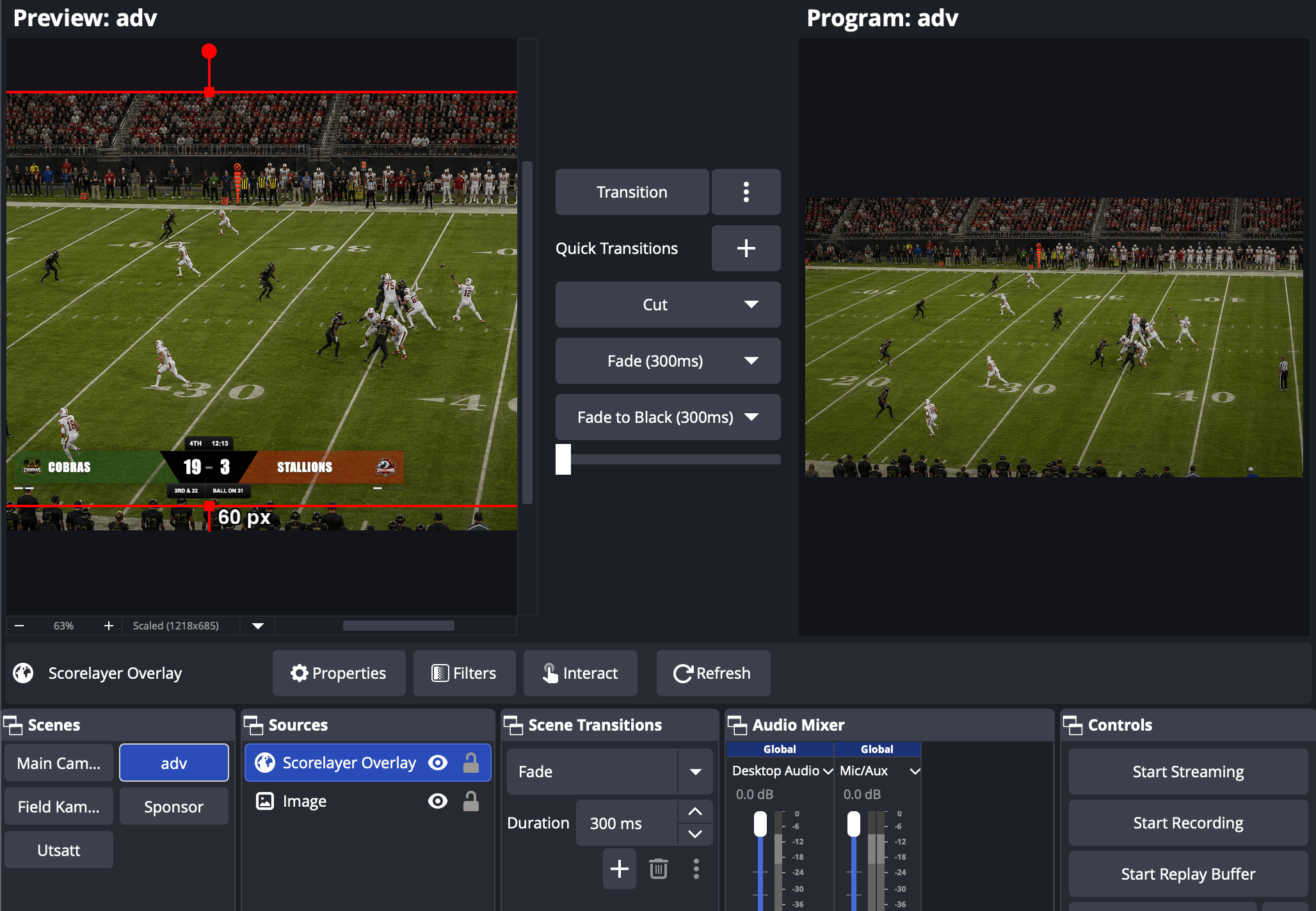
Make sure:
- The background is transparent
- The overlay fits the canvas (most streaming software, like OBS, lets you resize the scorebug layer if you are not happy with how it sits at 1920×1080)
- Text is readable
- Logos are clear
- Nothing important is hidden by platform controls or cropping
- The browser source refreshes correctly
- The overlay remains in place when scenes change
Save the scene after testing.
Configure the video
Start with:
- 1920×1080
- 60 fps
- 6000–8000 kbps
- 2-second keyframe interval
- CBR rate control
Confirm the platform accepts your settings.
Then test the actual camera and capture card. Do not test with a different source and assume the camera will behave the same way at the venue.
Configure the audio
Listen through headphones. For commentary, a headset with a boom mic is an easy win — it keeps the mic a consistent distance from the mouth and lets the commentator monitor and talk hands-free.
Check:
- Commentary is easy to understand
- Audio source is set to mono (typically, a mono microphone will only give you send in one channel if left on its default settings)
- Ambient sound is not overpowering
- Wind does not dominate the signal
- Audio is not clipping
- The microphone is not muted
- Desktop notifications are not being captured
- Audio and video are reasonably synchronized
Outdoor audio often sounds worse than expected. Wind protection is not optional when using an exposed microphone.
Run a private test stream
A local preview is not enough.
Run a private or unlisted stream to the real platform.
Let it run for at least several minutes while you:
- Move the camera
- Update the scoreboard
- Start and stop the clock
- Speak into the microphone
- Watch network statistics
- Check the public output from another device
Use mobile data on the monitoring device so you are seeing the stream as a real viewer, not through the same local network.
Prevent unwanted updates and interruptions
Before shutting down for the night:
- Install necessary updates
- Restart the laptop
- Confirm all applications reopen
- Disable automatic sleep
- Disable notifications
- Close messaging applications
- Confirm the browser stays signed in
- Check the streaming platform login
- Save the production scene
- Charge every battery and power bank
Do not start a major operating-system update on matchday.
Three hours before kickoff
Charge and pack everything.
Confirm the crew and roles.
You should know:
- Who brings each piece of equipment
- Who has the streaming account
- Who sets up the camera
- Who runs OBS
- Who controls the scoreboard
- Who controls the clock
- Who monitors the public stream
- Who handles audio
- Who makes the decision to simplify the setup if something fails
Check the weather and bring protection for both rain and sun.
Two hours before kickoff
Arrive earlier than feels necessary.
Walk the venue before unpacking everything.
Choose the camera and production position based on visibility, safety, power, weather, and internet signal.
Set up the camera
- Lock the tripod
- Attach the camera securely
- Check that the quick-release plate is tight
- Frame the entire field
- Avoid unnecessary digital zoom
- Clean the lens
- Connect the power bank or camera power
- Secure cables so they cannot pull on the camera
- Position and secure the umbrella or weather cover
- Check that the cover does not enter the frame
Set up the router and laptop
- Place the router where it gets the best mobile signal
- Keep it protected from rain and direct sun
- Connect the laptop by Ethernet
- Connect the laptop to reliable power
- Keep power cables away from walkways
- Tape down cables where people may pass
- Start the production software
- Confirm the camera input
Ninety minutes before kickoff
Build the full production chain.
Confirm:
- Camera feed is stable
- Video resolution is correct
- Frame rate is correct
- Capture card is not dropping the signal
- Audio is present
- Commentary microphone works
- ScoreLayer overlay is visible
- Team names are correct
- Logos look good
- Score is reset
- Clock is reset
- Possession is correct
- Down and distance are ready, if used
- Pre-game mode works
- Recording is enabled, if required
- The public stream title and description are correct
If the capture card is unstable, test 1080i input from the camera.
If the wireless phone feed is unstable, reduce local wireless congestion, move the router, or simplify the camera connection before the match begins.
Sixty minutes before kickoff
Run the real test.
Start a private or unlisted stream and monitor it on a separate phone using mobile data.
Look for:
- Smooth camera movement
- Clear player motion
- Stable resolution
- Acceptable delay
- Clean audio
- Correct overlay placement
- Readable score and clock
- Good logo size
- Fast scoreboard updates
- A working pre-game countdown
- No dropped frames
- No repeated network warnings
Let the test run.
A stream that works for ten seconds has not been properly tested.
If the bitrate is too high for the connection, lower it now.
If the laptop is overloaded, reduce production complexity before the public stream begins.
Thirty minutes before kickoff
Stop redesigning the production.
From this point, only change something when it is clearly broken.
Run the final check:
- Camera framed correctly
- Tripod locked
- Umbrella or cover secure
- Phone or camera receiving power
- Laptop connected to power
- Laptop connected to router by Ethernet
- Router receiving power
- Audio levels set
- Score reset
- Clock reset
- Pre-game mode active
- Correct teams loaded
- Control panel open
- Streaming destination correct
- Recording location has enough space
- Backup hotspot available
- Notifications disabled
- Unused browser tabs closed
Give the scoreboard and clock operators a final reminder of their roles.
Ten minutes before kickoff
Start the public stream.
Use ScoreLayer pre-game mode so viewers see the countdown.
A wide shot of the field with natural sound is enough while teams complete their warm-up.
Check the public output one final time from another device.
Confirm:
- The stream is live
- The correct match is being shown
- Audio is working
- The scoreboard is visible
- The countdown is correct
- The score is reset
- The game clock has not started
- The stream is not buffering badly
- The camera is still receiving power
Then stop making optional changes.
During the match
The best production is calm behind the scenes.
The camera follows play. The overlay stays in position. The score changes quickly. The clock operator watches the officials. The producer monitors stream health without constantly rebuilding the scene.
Prioritise:
- Keep the stream online
- Keep the action in frame
- Keep the score correct
- Keep the clock accurate
- Keep the audio understandable
- Update possession and down and distance consistently
When something goes wrong
Fix the most important failure first.
Use this order:
- No stream
- No video
- No audio
- Wrong score
- Wrong clock
- Missing extra information
- Visual polish
Viewers can tolerate a plain overlay for a few minutes. They cannot follow a match with the wrong score or no picture.
If down and distance or possession cannot be maintained accurately, remove or ignore those elements at the next natural break. Do not keep displaying information you know is wrong.
Monitor the public output
OBS statistics tell you what the software is doing. The public stream tells you what viewers are receiving.
Keep a separate phone available to check:
- Whether the stream is still public
- Whether audio is present
- Whether the picture is buffering
- Whether the overlay is readable
- Whether the platform has displayed an error
Keep the monitoring volume low enough to avoid feedback into the commentary microphone.
Half-time checklist
Half-time is the best chance to fix small issues.
Check:
- Public stream health
- Dropped frames
- Audio level
- Microphone batteries
- Phone battery
- Power-bank level
- Camera battery
- Laptop temperature
- Router temperature
- Router signal
- Camera framing
- Tripod stability
- Umbrella or weather cover
- Score
- Period or half
- Match clock
- Possession
- Down-and-distance reset, if needed
- Local recording
- Available storage
Do not redesign the overlay at half-time — it only confuses viewers.
Use the break to restore a stable setup, then prepare for the second half.
After full-time
Do not shut everything down as soon as the whistle goes.
First:
- Confirm the final score
- Stop the match clock
- Show the final result
- Keep the stream live briefly
- Let commentary wrap up, if used
Then:
- Stop the public stream
- Stop the local recording
- Confirm the recording file exists
- Check that the platform processed the stream
- Save any notes about technical problems
- Shut down the camera
- Disconnect power safely
- Pack adapters and small cables first
- Collect the router and SIM
- Remove tape and cable covers
- Check the area for batteries, clamps, and mounting plates
Write down anything that should change next time while it is still fresh.
Useful notes include:
- Better camera position
- Lower or higher bitrate
- Weak mobile network
- Audio problems
- Missing cable
- Logo that needs cropping
- Scoreboard element that was too difficult to maintain
- Battery that did not last
- Capture card instability
- Need for an extra operator
That short review is how the next stream becomes easier.
Complete matchday streaming checklist
Day before
- Create the ScoreLayer scoreboard
- Add team names, colours, and logos
- Check logos in the selected overlay
- Choose score, clock, possession, and down-and-distance configuration
- Add the overlay to OBS, Streamlabs, or vMix
- Test score updates
- Test the match clock
- Test possession
- Test down and distance
- Test pre-game mode
- Configure 1080p
- Configure 60 fps
- Set bitrate around 6000–8000 kbps
- Test camera and capture card
- Try 1080i input if the capture card is unstable
- Test commentary and ambient audio
- Run a private stream
- Monitor it from another device
- Charge batteries and power banks
- Pack equipment
- Assign crew roles
At the venue
- Choose a high, central camera position
- Check power availability
- Check mobile signal
- Secure the tripod
- Clean the lens
- Connect camera power
- Set up and secure the umbrella or weather cover
- Protect the operator from rain or direct sun
- Set up the dedicated 5G router
- Connect the laptop to the router by Ethernet
- Protect the router and laptop
- Tape down cables
- Confirm the camera feed
- Confirm audio
- Confirm the overlay
One hour before kickoff
- Start a private or unlisted stream
- Watch it using mobile data
- Check camera movement
- Check audio
- Check overlay placement
- Check logos
- Check scoreboard controls
- Check pre-game countdown
- Check dropped frames
- Lower bitrate if needed
Thirty minutes before kickoff
- Lock the camera position
- Check all power connections
- Reset the score
- Reset the clock
- Set the correct period
- Activate pre-game mode
- Open the ScoreLayer control panel
- Confirm operator roles
- Close unused applications
- Disable notifications
- Prepare the backup hotspot
Ten minutes before kickoff
- Start the public stream
- Confirm it is actually live
- Check audio
- Check the scoreboard
- Check the countdown
- Confirm the score is reset
- Confirm the clock has not started
- Check buffering from another device
During the match
- Keep the action in frame
- Update the score quickly
- Keep the clock accurate
- Update possession consistently
- Update down and distance consistently
- Monitor the public output
- Watch for dropped frames
- Avoid unnecessary production changes
After the match
- Confirm the final score
- Stop the clock
- Leave the final result on screen briefly
- Stop the stream
- Stop the local recording
- Confirm the recording file exists
- Pack every adapter and cable
- Collect the router and SIM
- Remove tape and cable protection
- Write down improvements for next time
Frequently asked questions
What is the best bitrate for streaming football?
For a 1080p football stream, start around 6000–8000 kbps. Fast movement and camera pans need more bitrate than a mostly static video.
Lower the bitrate when your upload connection cannot maintain it reliably. Stability matters more than maximum image quality.
Should I stream football at 30 or 60 fps?
Use 60 fps when your camera, capture card, laptop, and internet connection can handle it. It makes fast action and camera pans look smoother.
Use 30 fps when 60 fps causes dropped frames, overheating, or connection problems.
Can I stream a football match with an iPhone?
Yes. A modern iPhone is good enough for many grassroots football streams.
Use a stable tripod and phone clamp, clean the lens, connect a charged power bank, and protect the phone from rain and direct sunlight.
Do I need a capture card?
You need a capture card when using a camera that outputs HDMI into the laptop.
You may not need one when using a phone camera over Wi-Fi or a dedicated phone streaming application.
Why does my capture card fail at 1080p?
Some capture cards and inexpensive HDMI dongles do not handle every 1080p signal reliably.
Try a different frame rate, cable, USB port, or 1080i output from the camera. Test the complete setup before matchday.
Can I use venue Wi-Fi?
You can, but you should not depend on it without testing how it performs when the venue is busy.
A dedicated 4G or 5G router is usually safer. Connect the laptop to the router with Ethernet whenever possible.
How much upload speed do I need?
Your stable upload speed should be comfortably higher than the selected video bitrate.
Do not base the setup on one unusually good speed test. Run a sustained private stream from the real production position.
Does the game clock need its own operator?
Ideally, yes.
A match clock needs regular attention. Assigning it to a dedicated person improves accuracy and lets the producer focus on the stream.
Which scoreboard information should I show?
Show only what your team can keep accurate.
Start with score, period, and clock. Add possession or down and distance when someone is available to update them consistently.
When should I start the public stream?
Starting around ten minutes before kickoff works well for most grassroots matches. Some federations have their own guidelines, though, so make sure you check.
Use ScoreLayer pre-game mode to show a clear countdown while viewers join.
Keep the setup simple
The biggest mistake in grassroots streaming is trying to build a full television production with too few people and too little preparation.
Start with the essentials:
- A clear and stable picture
- Reliable internet
- Understandable audio
- The correct score
- An accurate match clock
- A clean scoreboard overlay
Then add more when the basic stream is dependable.
ScoreLayer keeps the scoreboard separate from your stream layout. Set it up before kickoff, add the transparent overlay to OBS as a browser source, and control the score, clock, and teams from your browser while the stream keeps running.
That is what a good grassroots production should feel like.
Prepared before kickoff. Calm during the match. Easy for viewers to follow.
Ready to go live?
Create a free scoreboard and add it to OBS in under 2 minutes — no install required.
Create free scoreboard